
CRM
One record per customer, with everything they have ever done with you.
Clients, companies and leads, each on a page that brings together their deals, tickets, invoices, documents, emails and history. The core every other module builds on.
- Client, company and lead records
- Today, Inbox and dashboards you arrange
- Search across everything (Ctrl/⌘+K)
- Related records and merge duplicates
- Import from HubSpot, Salesforce or a spreadsheet
Why it matters
Today the story of each customer is scattered. Contact details sit in one app, quotes in another, support emails in someone's inbox and the notes from last month's call in a notebook. When a client rings, you search three places before you can answer, and when a colleague is off sick their follow-ups quietly stop. Nobody can say at a glance what a customer has bought, what they owe or what they are waiting for.
-
Answer any client in seconds
Their contact details, open tickets, unpaid invoices, quotes, projects, emails and notes are on one page, so you can reply without asking them to repeat themselves.
-
Follow-ups that don't slip
Every call, meeting and promise can carry a follow-up task, and Today and the dashboard put anything late in front of the right person.
-
Clean data you can trust
Companies keep a permanent record, duplicates are merged with a preview, and deleted records can be restored for 30 days, so history is never lost by accident.
How it works
-
Bring your customers in
Import companies, contacts and deals from HubSpot, Salesforce or a spreadsheet. You see exactly what will happen before anything is written, and you can undo the import afterwards.
-
Work from the record
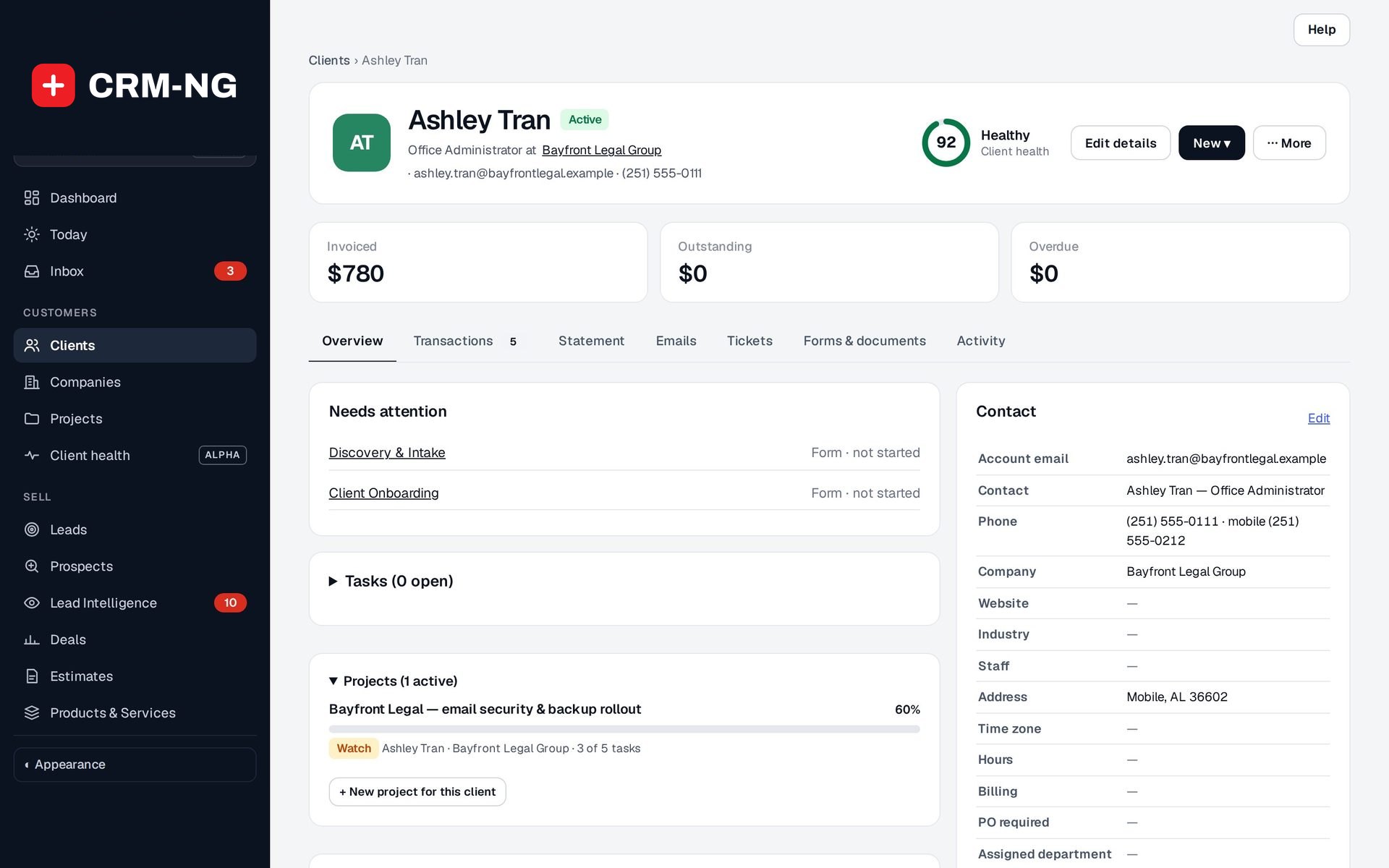
Open a client or company to see everything about them. Log a call, email or meeting, add a note, start a timer or create a quote, ticket or invoice from the New menu.
-
Start each day on Today
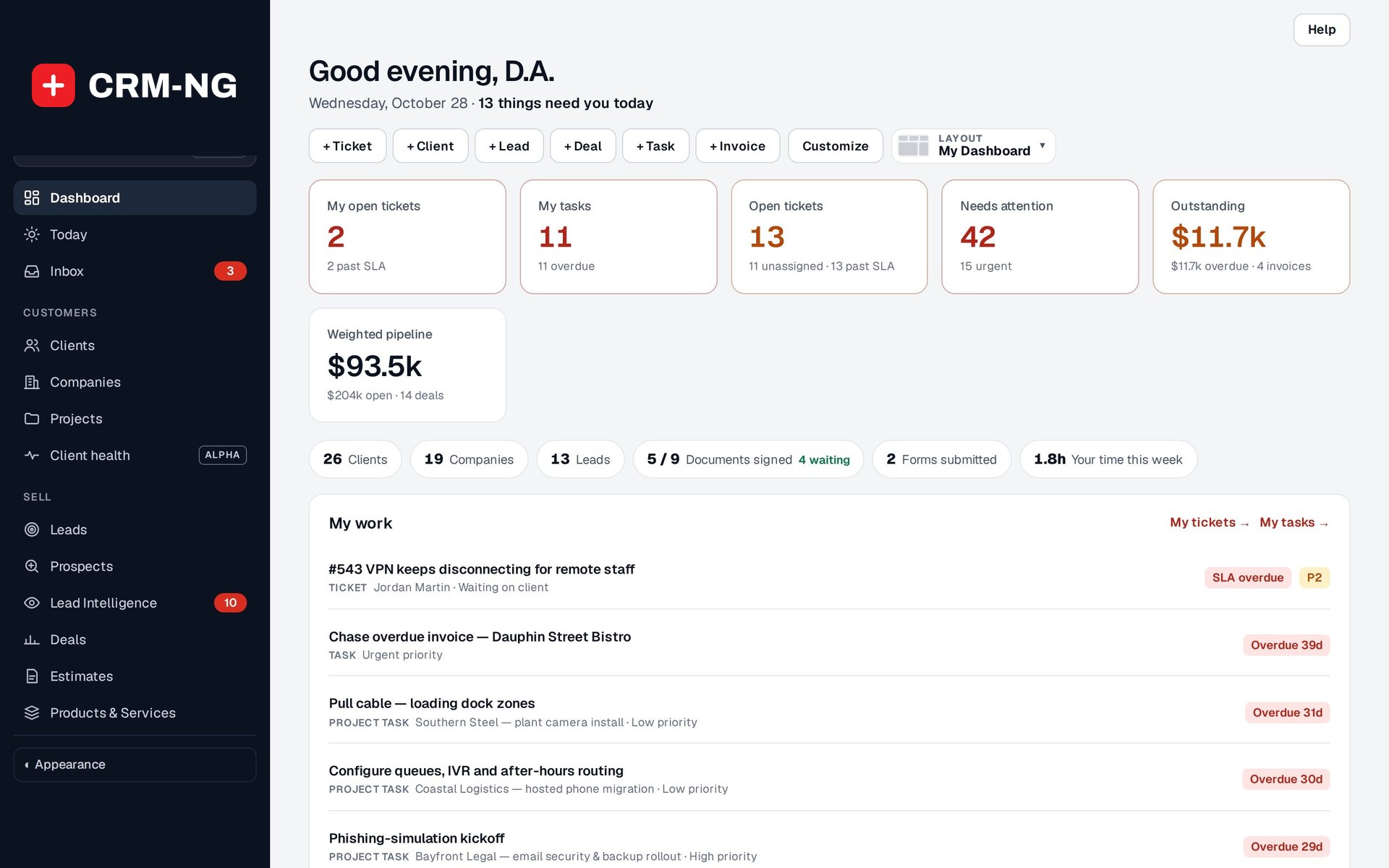
Today shows what needs you, your schedule, the running timer and the next seven days. The Inbox collects notifications and client replies so nothing waits unseen.
-
Keep the picture current
Move clients through stages, tag them, link related records and merge duplicates. Dashboards and list views update from the records themselves.
What CRM does
Every CRM-NG workspace starts here.
-
A page per customer
Contact details, stage, tags, notes and tasks, with every deal, ticket, invoice, document and form linked to them. Phone numbers and addresses that work anywhere in the world.
- Tabs for Overview, Transactions, Statement, Emails, Tickets, Forms & documents and Activity
- Invoiced, Outstanding and Overdue totals at the top of the page
- Stages: Prospect, Onboarding, Active, On hold and Former
- Contact, CRM details and Company cards that edit in place
-
Companies that keep their history
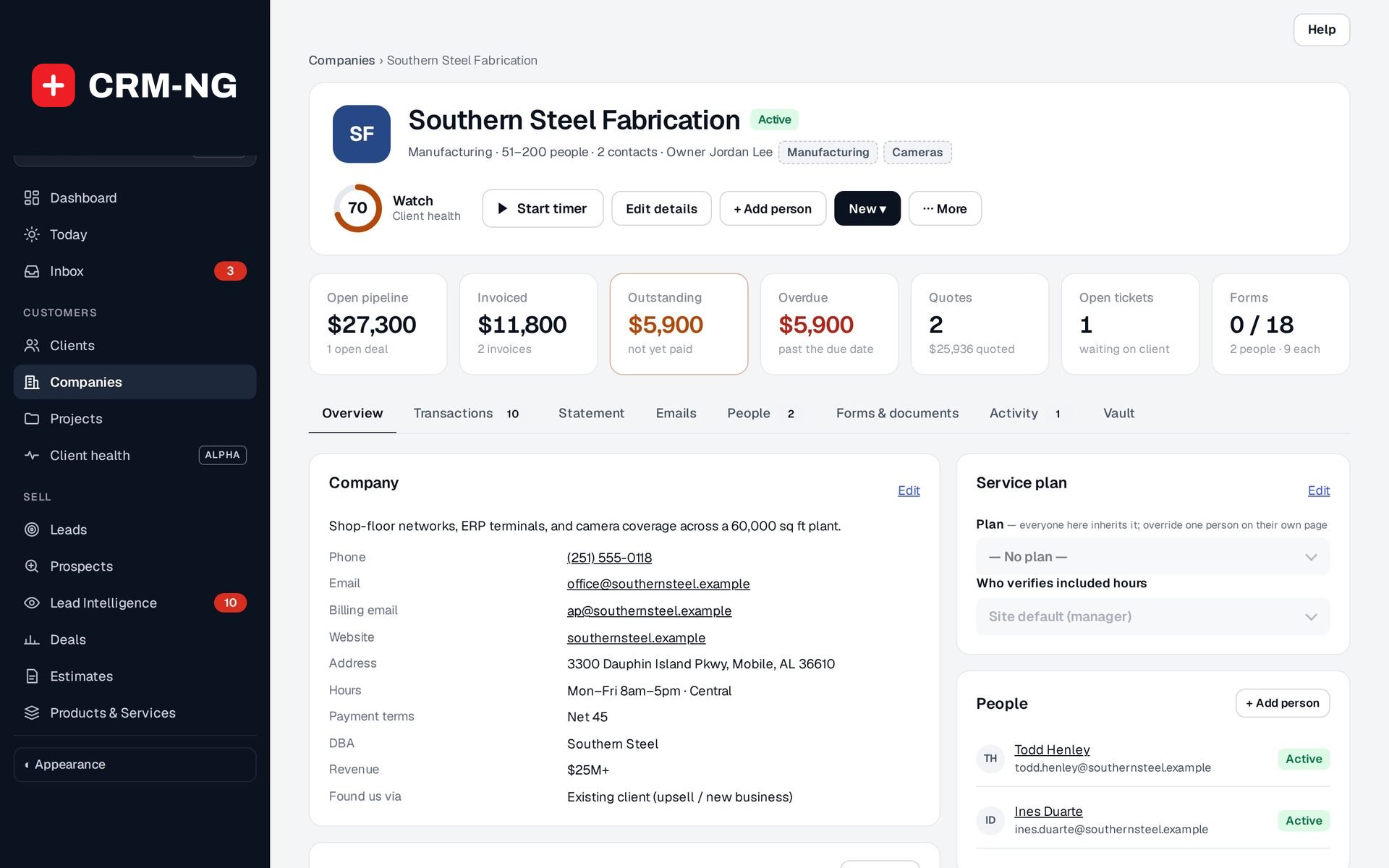
People belong to a company with a permanent record, so renaming or merging a company never loses what is attached to it.
- Open pipeline, invoiced, outstanding, quotes, open tickets and forms at a glance
- Billing email, payment terms, DBA, industry, size, revenue and owner
- Billing and shipping addresses, time zone and opening hours
- Service plan set once for the company, with per-person overrides
-
Today and the Inbox
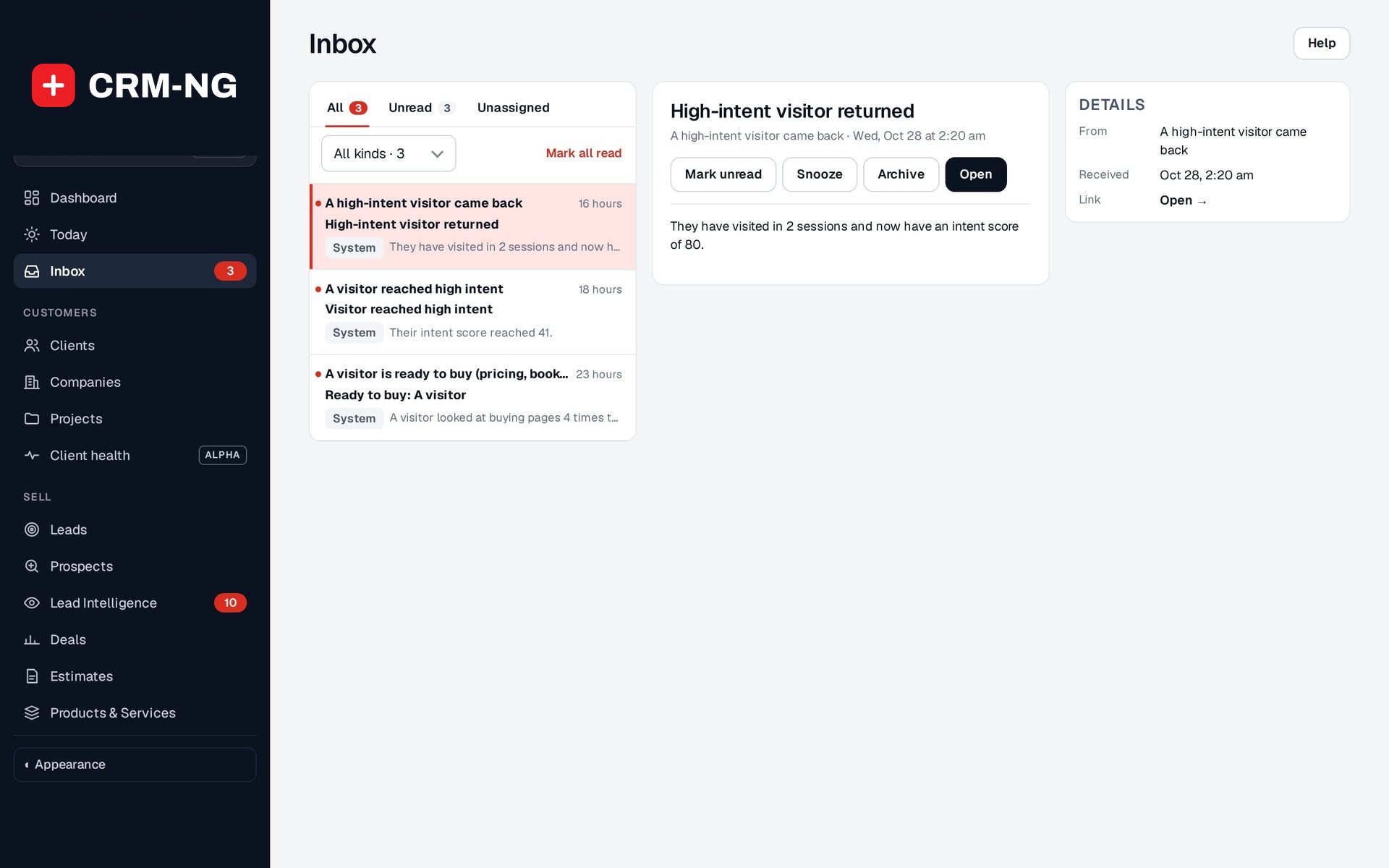
Today shows what needs you, your day and what is coming up. The Inbox collects notifications and client replies, answerable without leaving it.
- Needs you, split into Mine, Team and Company
- Coming up: tasks, deal closings, ticket targets and milestones for the next 7 days
- Inbox tabs for All, Unread and Unassigned, with Snooze and Archive
- Reply to a client or add an internal note straight from the Inbox
-
Dashboards you arrange
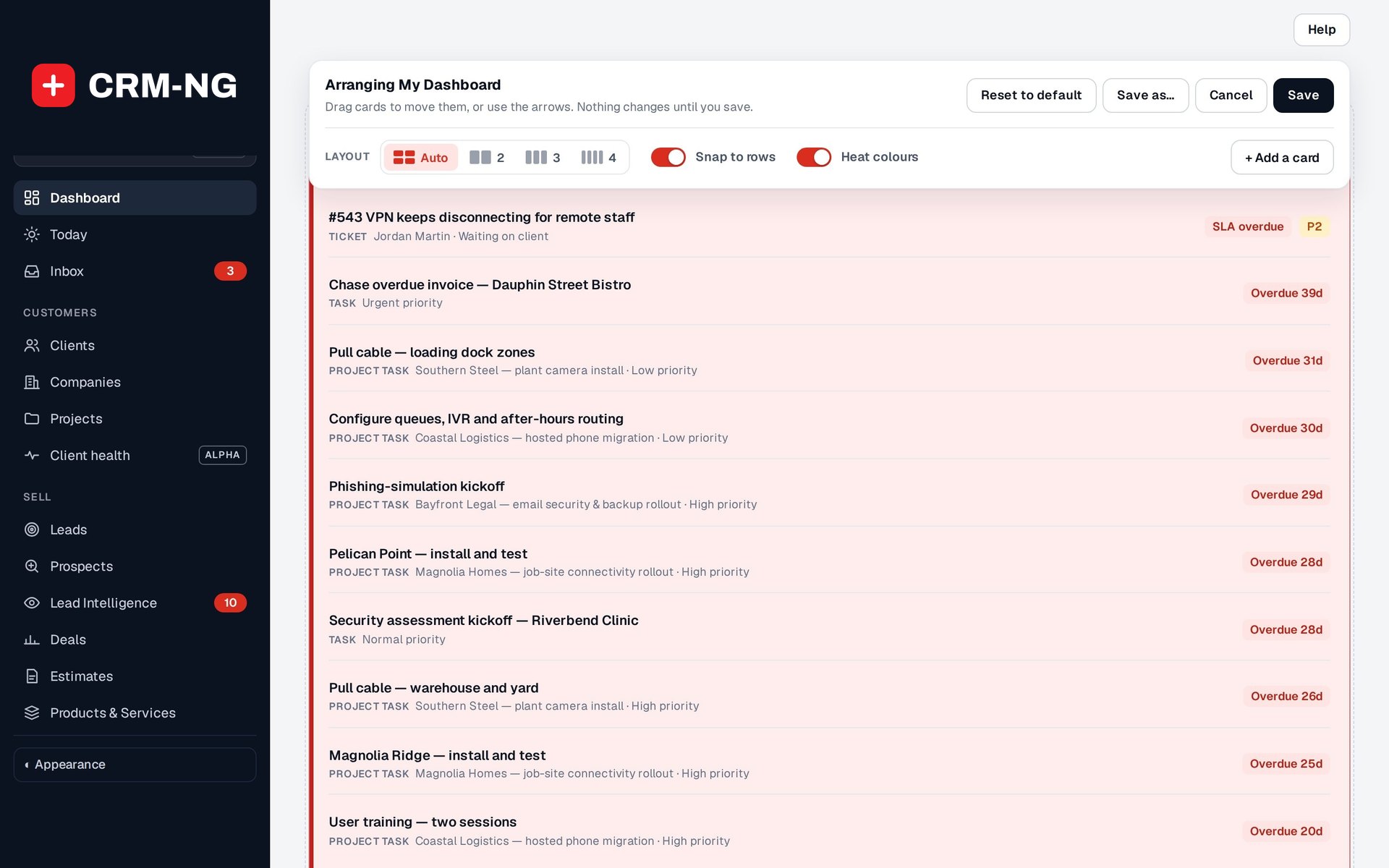
Drag cards, choose columns, and turn on heat colours so the cards with overdue work turn red.
- Customize: drag cards, pick a 2, 3 or 4 column layout, add or remove cards
- Heat colours run from green to yellow to red as work stays overdue
- Quick-add buttons for a ticket, client, lead, deal, task or invoice
- Every total opens the records behind it
-
Activity you can log in seconds
Record calls, emails and meetings on the customer as they happen, so the next person picks up exactly where you left off.
- Note, Log call, Log email and Log meeting buttons on every record
- A call's direction, outcome and minutes; a meeting's attendees
- Add a follow-up task in the same step
- The customer timeline shows each activity at the time it happened
-
Every email in one tab
The Emails tab lists everything sent to the customer, from invoices to campaigns to support replies, with opens and clicks where tracked.
- Filter by Documents, Campaigns, Support or Other
- View any email exactly as it was sent
- Send a document again with its PDF attached
-
Lists that find anyone fast
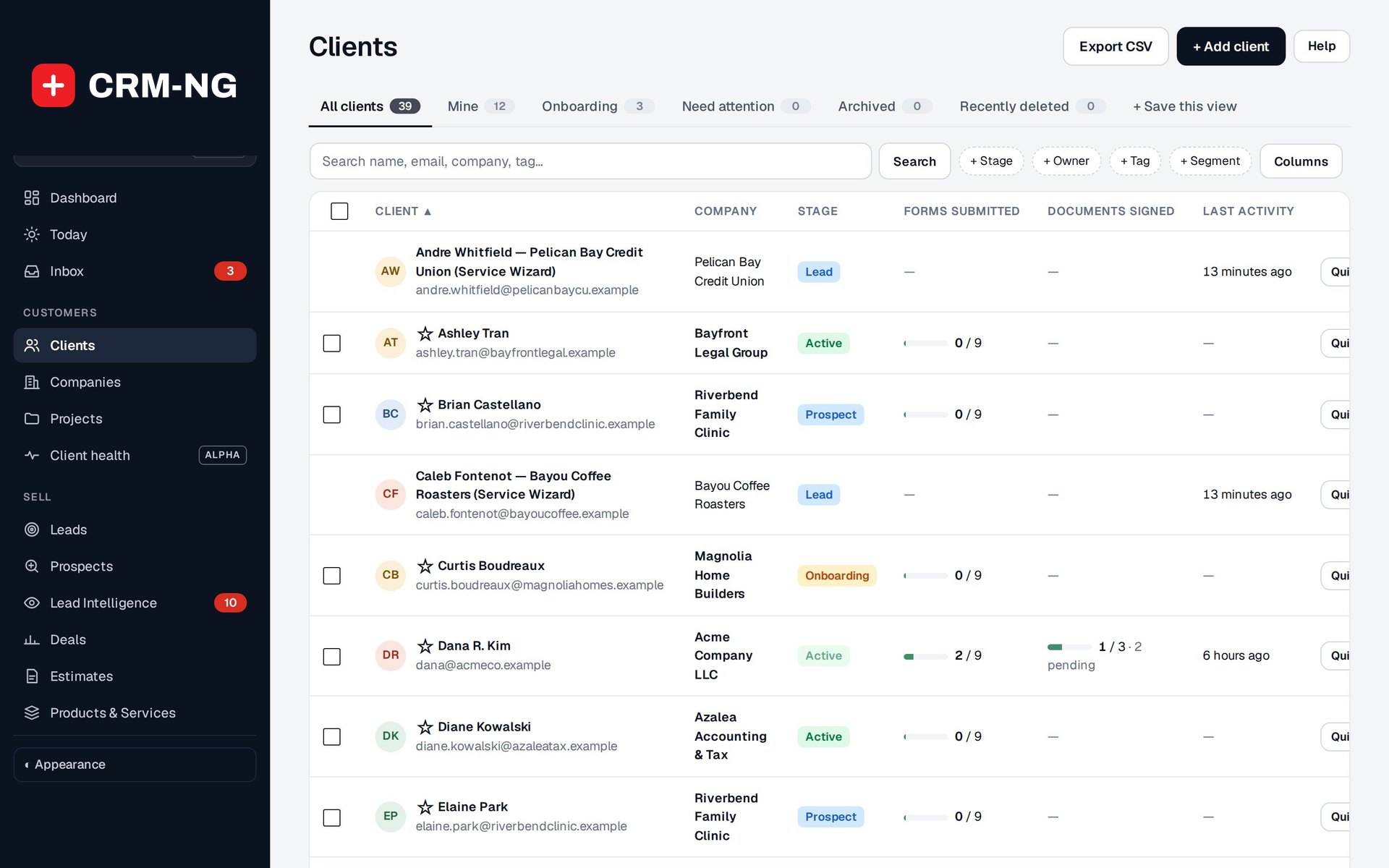
Search the whole workspace from the top of the menu, then narrow any list with tabs, filter chips and views you save.
- Ctrl/⌘+K jumps to search from anywhere
- Clients tabs: All, Mine, Onboarding, Archived, Recently deleted
- Filter chips for stage, owner, tag and segment; choose your columns
- Quick look opens a record beside the list without leaving it
-
Related records
Link anything to anything with one search across tickets, deals, clients, companies, vendors, leads and invoices.
- Typed links on tickets and deals: related, parent/child, predecessor/successor, duplicate of
- Loops and self-links are refused
- Each link shows the record's type and status, with one click to remove
-
Bring your data with you
Import from HubSpot, Salesforce or a spreadsheet with a preview, duplicate matching and undo.
- Six steps: Source, File, Match columns, Preview, Import, Done
- Records you already have are matched, not duplicated
- No workflows start and no email is sent during an import
- Undo removes what the import created and keeps anything edited since
See it in action
Go deeper
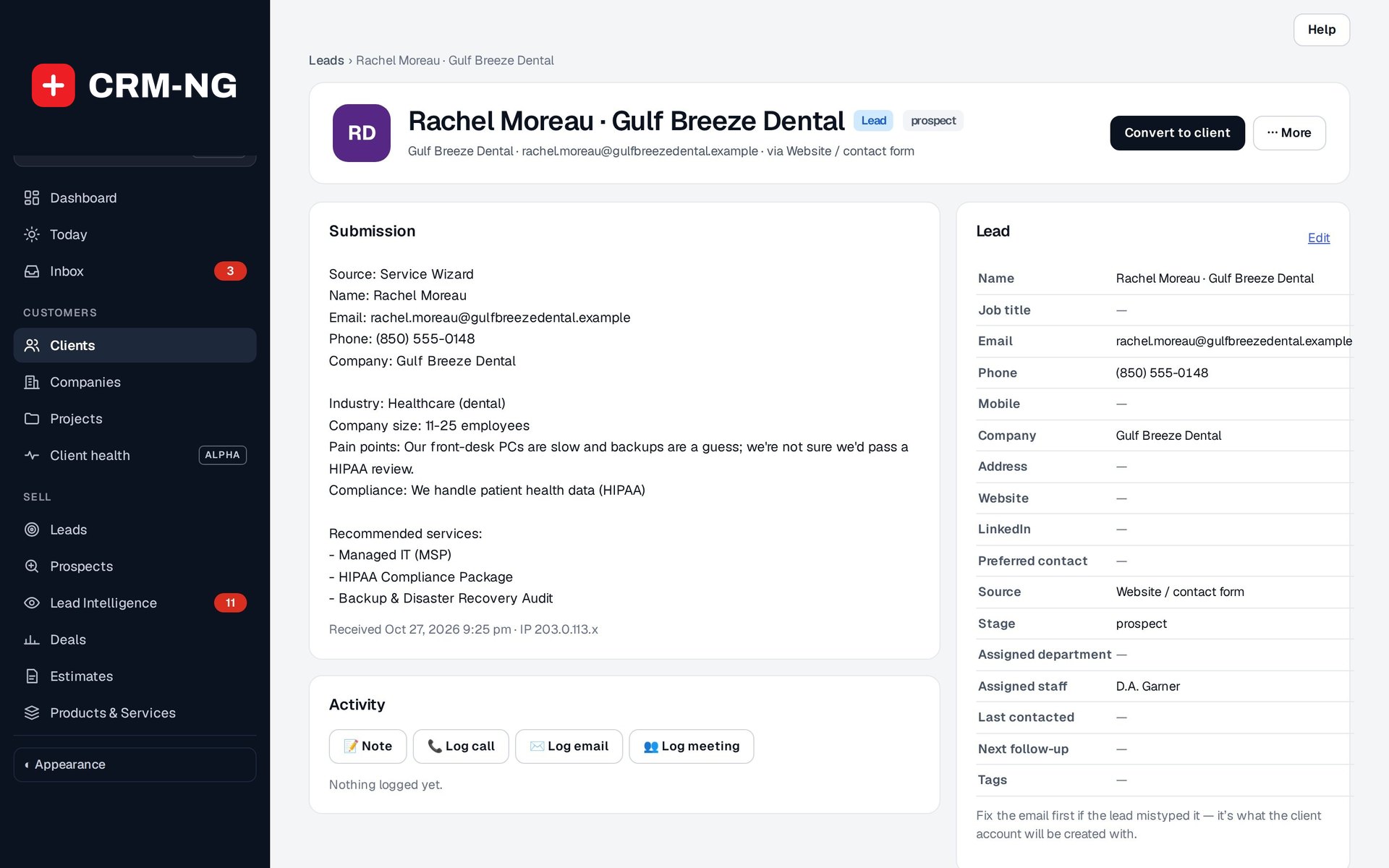 Leads and conversionLeads hold the people you are still talking to: where they came from, who owns them, what was said and what happens next. When they are ready, one action gives them a client account.Read more →
- Companies and peopleA company record holds the organization your contacts work for: its people, billing details, service plan, transactions and history, under a permanent identity that survives renames and merges.Read more →
- Switching and clean-upImport your customers from HubSpot, Salesforce or a spreadsheet, merge the duplicates you already have, and restore anything deleted by mistake.Read more →
Who it is for
-
An IT provider or MSP
Each client company holds its people, service plan, open tickets, quotes and invoices, so a technician on the phone sees the whole account and the owner sees who is behind on payments.
-
An accounting, legal or consulting firm
Keep every engagement's contacts, forms, signed documents and correspondence on the client's page, with private notes for staff and onboarding forms the client completes.
-
A trades or field-service business
Store site addresses, opening hours and the contacts who let you in, log calls as jobs are booked, and see what each customer has been quoted and invoiced before you go out.
-
A clinic or practice
Track organizations and their people with stages from onboarding to former, assign intake forms, and keep a full history of every email and conversation.
Works with the rest of CRM-NG
- Sales
Deals and estimates appear in the customer's Transactions tab and timeline, and New on a client or company starts a prefilled deal or estimate.
- Service Desk
A customer's tickets, open-ticket count and service plan show on their page, and time logged against tickets follows the customer.
- Accounting
Invoices and payments fill the Transactions and Statement tabs and the Invoiced, Outstanding and Overdue totals on every client and company.
- Marketing
Campaign emails show in the customer's Emails tab with opens and clicks, and saved segments become a filter on the Clients list.
Questions
How hard is it to move from HubSpot, Salesforce or a spreadsheet?
The import brings in companies, contacts and deals. It guesses how your columns match, shows you exactly what will be created or updated before anything is written, matches records you already have instead of duplicating them, and can be undone afterwards.
What is the difference between a lead, a client and a company?
A lead is someone you are still talking to and who does not need a sign-in. A client is a person with their own account, who can use the client portal. A company is the organization your clients and leads belong to, and it holds billing details, the service plan and the account history.
What happens if someone deletes a record by mistake?
Deleting asks you to type DELETE first, then moves the client, company or lead to Recently deleted, where it can be restored for 30 days. Deleting a company keeps its people as clients unless you confirm a second time.
Who on my team can see and change customer records?
Access follows each person's role. Staff work with the records their role allows, only managers and above can delete companies and leads, and settings are reserved for administrators. Clients see only what the portal rules give them.
Can I use it on a phone?
Yes. Lists turn into labelled cards at phone width and record pages stack into one column, so you can look up a customer or log a call on the move.
Can I get my data out again?
Yes. The Clients and Companies lists export to CSV.
See CRM running on your own data.
Every module runs on CRM-NextGen Cloud: we set it up and run it for you. Beta members get the first invites and hear pricing first.