
Accounting
Invoices, payments and the books, in the same system as the work.
Invoice from your time and estimates, take card payments through Stripe, and keep double-entry books that update as payments arrive. Built for service businesses that want to get paid faster and hand their accountant clean records.
- Invoices and payments
- Stripe card payments
- Automatic payment reminders
- Chart of accounts and journals
- Bills, expenses and banking
- Financial reports and a CPA package
Why it matters
The work is logged in one place, the invoice is typed up in another, and the books live in a third tool that someone updates at the end of the month. Hours slip through unbilled, nobody notices an invoice is weeks late until cash is tight, and every year-end means exporting, re-keying and explaining the same numbers to your accountant. Each copy of the figures drifts a little further from the truth.
-
Bill everything you did
Invoices are built from the time, estimates and expenses already in the system, so finished work is far less likely to go unbilled.
-
Get paid sooner
Clients can pay by card from the invoice email or their portal, and reminders go out on the schedule you set without anyone having to chase.
-
Books you can hand over
Every invoice and payment posts to double-entry books on its own, so the reports and the year-end package for your accountant come from the same records your team works in.
How it works
-
Set up the books once
Choose your home currency, fiscal year, tax treatment and which account each payment method deposits into. A ready-made chart of 47 accounts gets you started, and you can enter opening balances.
-
Invoice from the work
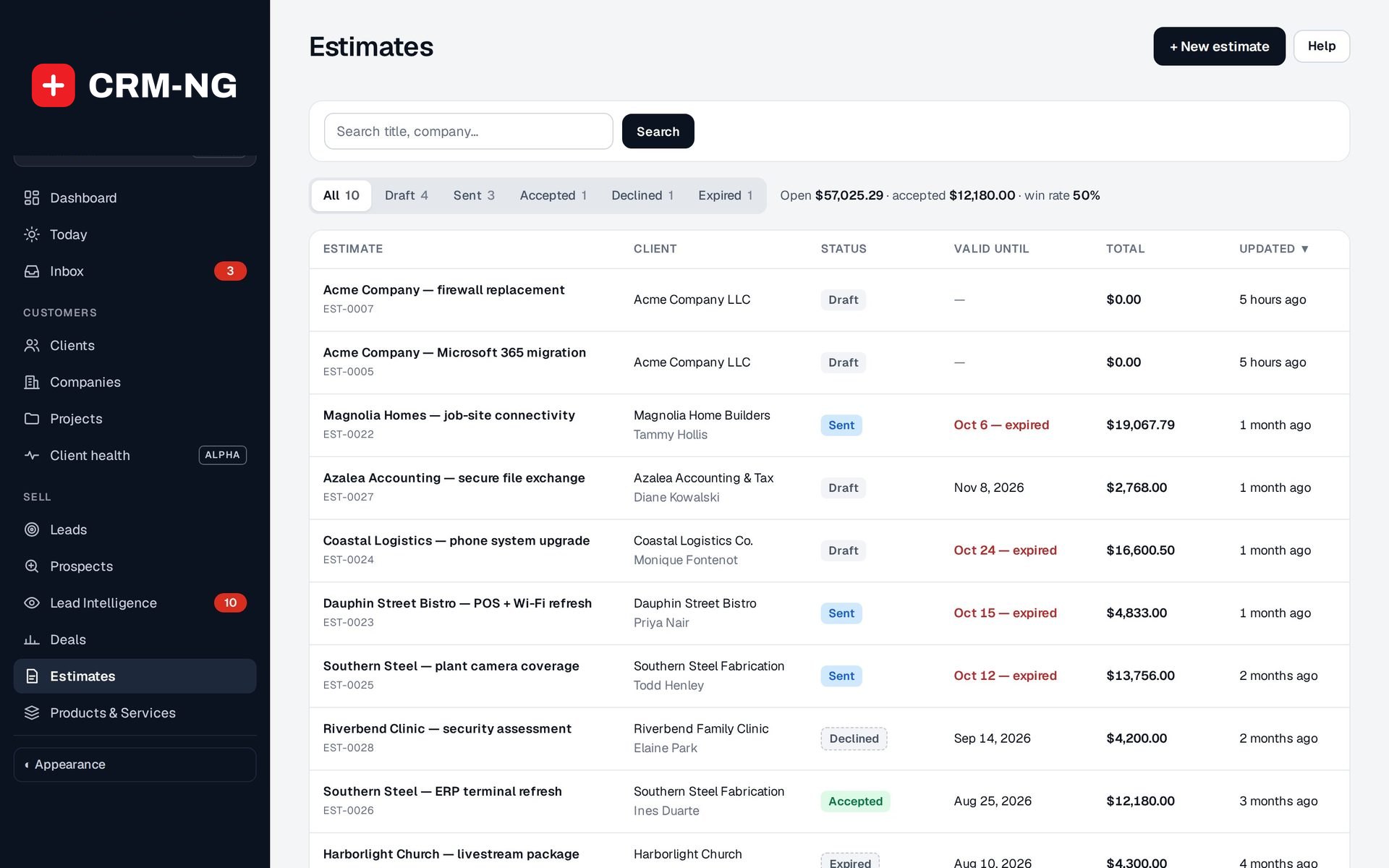
Turn an accepted estimate, logged time or a billable expense into a draft invoice, check it, then email it with the PDF attached and an optional Pay online link.
-
Collect and record payments
Card payments through Stripe settle the invoice by themselves; cheques and transfers are recorded in a couple of clicks. Part payments leave the rest outstanding.
-
Record what you spend
Enter purchases and supplier bills with their receipts, set up recurring bills, and track money owed back to staff who paid out of their own pocket.
-
Reconcile and report
Import your bank statement, match each line to the books, then run profit and loss, balance sheet, aging and tax reports, or download a package for your accountant.
What Accounting does
Service businesses that want invoicing, collections and the books where the work already is.
-
Invoices from the work
Pull logged time and accepted estimates onto an invoice, send it as a PDF, and track it to paid.
- Create a draft from an estimate, from tracked time, from a billable expense or from scratch
- Drafts are reviewed before they are issued; drafts and voids never reach the books
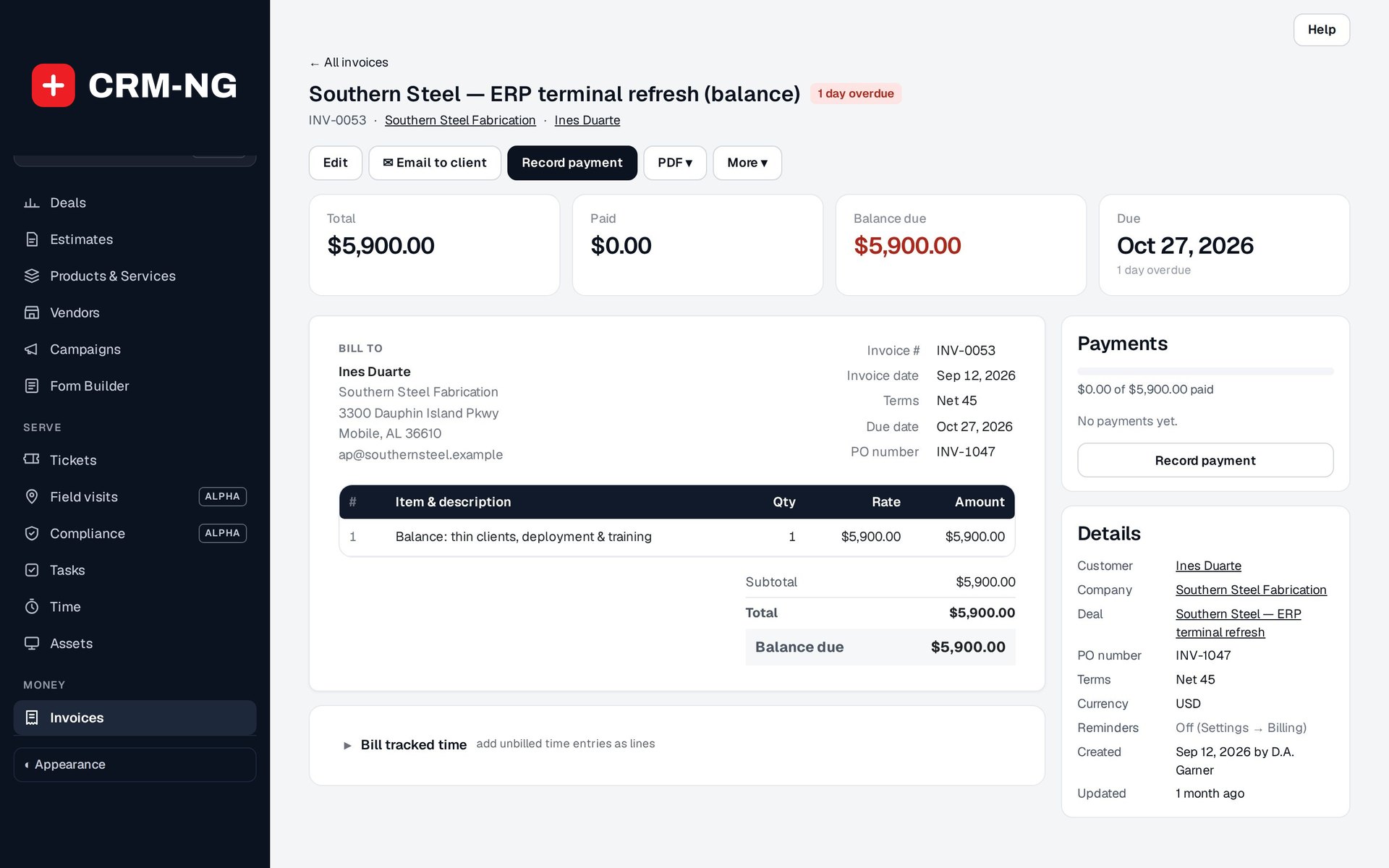
- The invoice page shows total, paid, balance due and every payment beside the document
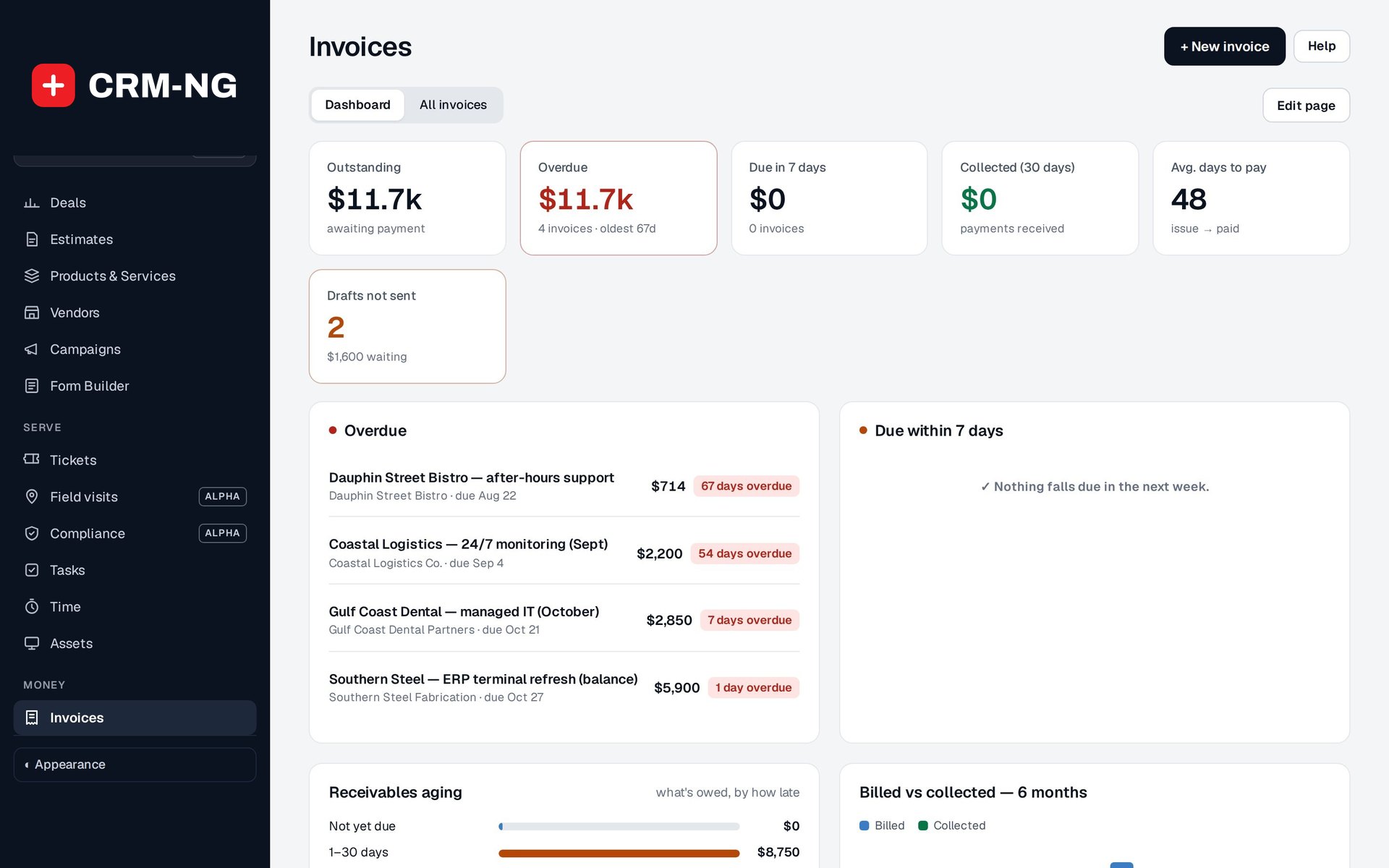
- Invoices dashboard: outstanding, overdue, due in 7 days, collected in 30 days and average days to pay
-
Card payments
Connect Stripe and clients pay online from the invoice email or the portal.
- A Pay online link can be added to the invoice email and to payment reminders
- A Pay now button on the invoice in the client portal
- The invoice is marked paid only when Stripe confirms a payment with the right amount and currency
- Stripe keys are stored encrypted and never shown again after saving
-
Payment reminders that send themselves
Choose when reminders go out, before and after the due date, and each unpaid invoice gets the right one at the right time.
- Steps in days from the due date, for example 3 days before, then 1, 7, 14 and 30 days late
- Separate wording for before-due and overdue reminders, with the invoice PDF attached
- Stop all reminders for a client or company, or for a single invoice
- Switching reminders on never floods clients with a backlog of late notices
-
Statements and portal billing
Show each client exactly where their account stands, and let them check it themselves.
- A Statement tab on every company and client: opening balance, invoiced, received and balance due
- Print it, download a PDF or email it from the same screen
- In the client portal: Invoices, Payments and Statements pages, plus a Your account card with balance and next due date
-
Real books
A chart of accounts, journals and double-entry posting, so every invoice and payment lands in the right account.
- Starts with 47 accounts; key system accounts are protected so automatic posting keeps working
- Each automatic entry is linked to its source invoice or payment, so it is never posted twice
- Manual journals must balance; transfers and sales-tax payments have their own controls
- Opening balances with an equity offset for the day you switch over
-
Bills, expenses and reimbursements
Record purchases and supplier bills, and what you owe staff who paid personally.
- Itemised purchases and bills with vendor, receipt, account, quantity, tax and currency
- Recurring bills weekly, monthly, quarterly or yearly, as drafts or approved automatically
- Mark an expense billable and it becomes a draft client invoice at cost plus your markup
- Money owed to employees is tracked until it is repaid, without counting the expense twice
-
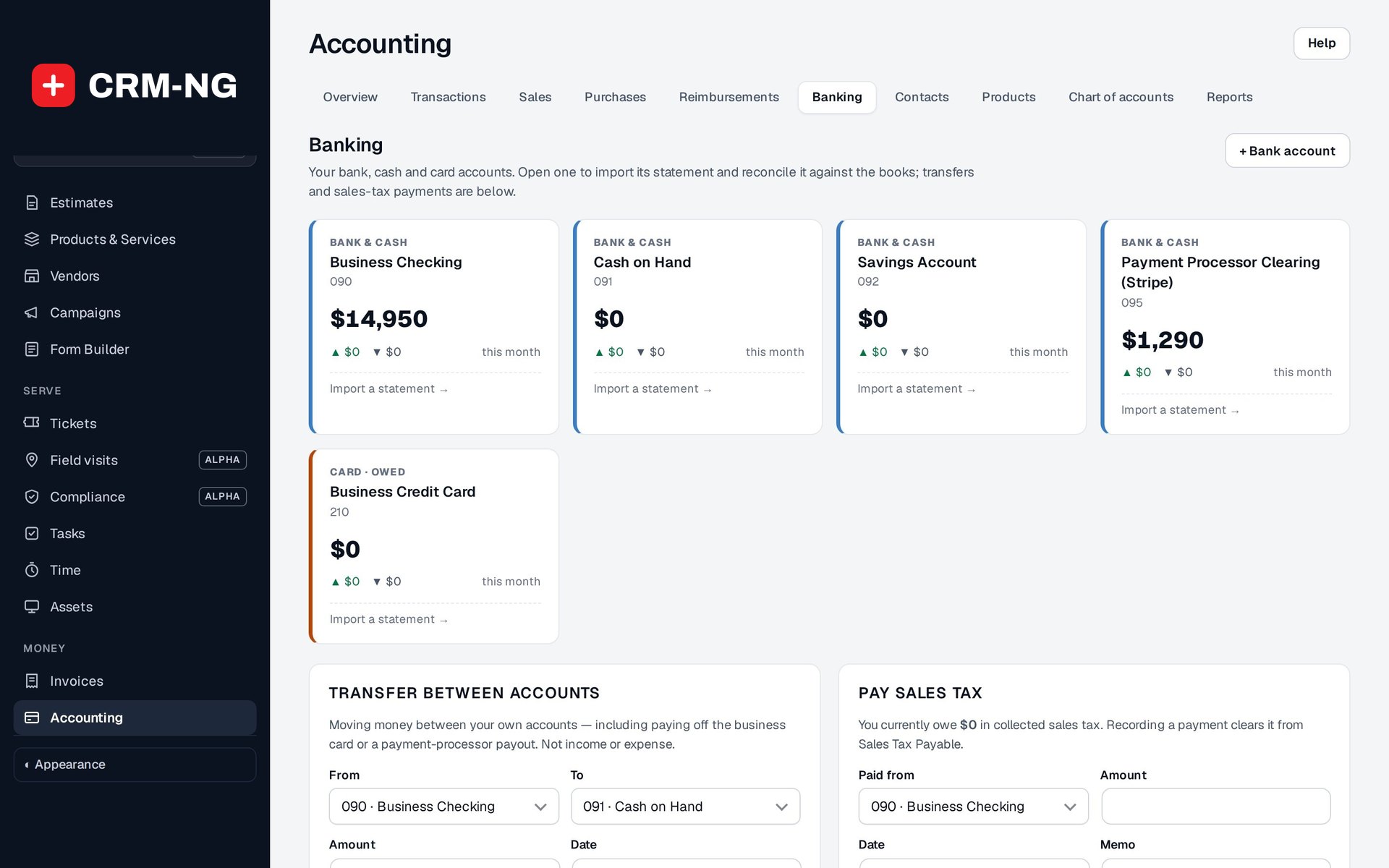
Bank reconciliation
Import a statement and match each line to what is already in the books.
- CSV import with Date, Description and Amount, or separate Debit and Credit columns
- Duplicate rows are skipped; a line is matched automatically when one entry has the same amount within seven days
- For each line: Match, Add to books, Ignore or Undo
- Book balance and cleared balance shown side by side
-
Reports
Profit and loss, balance sheet, cash flow, aging, sales tax and expenses by category or vendor.
- 15 report views, including Trial Balance, General Ledger and Journal Report
- Income by Client, Sales by Product and Service, and Inventory Valuation
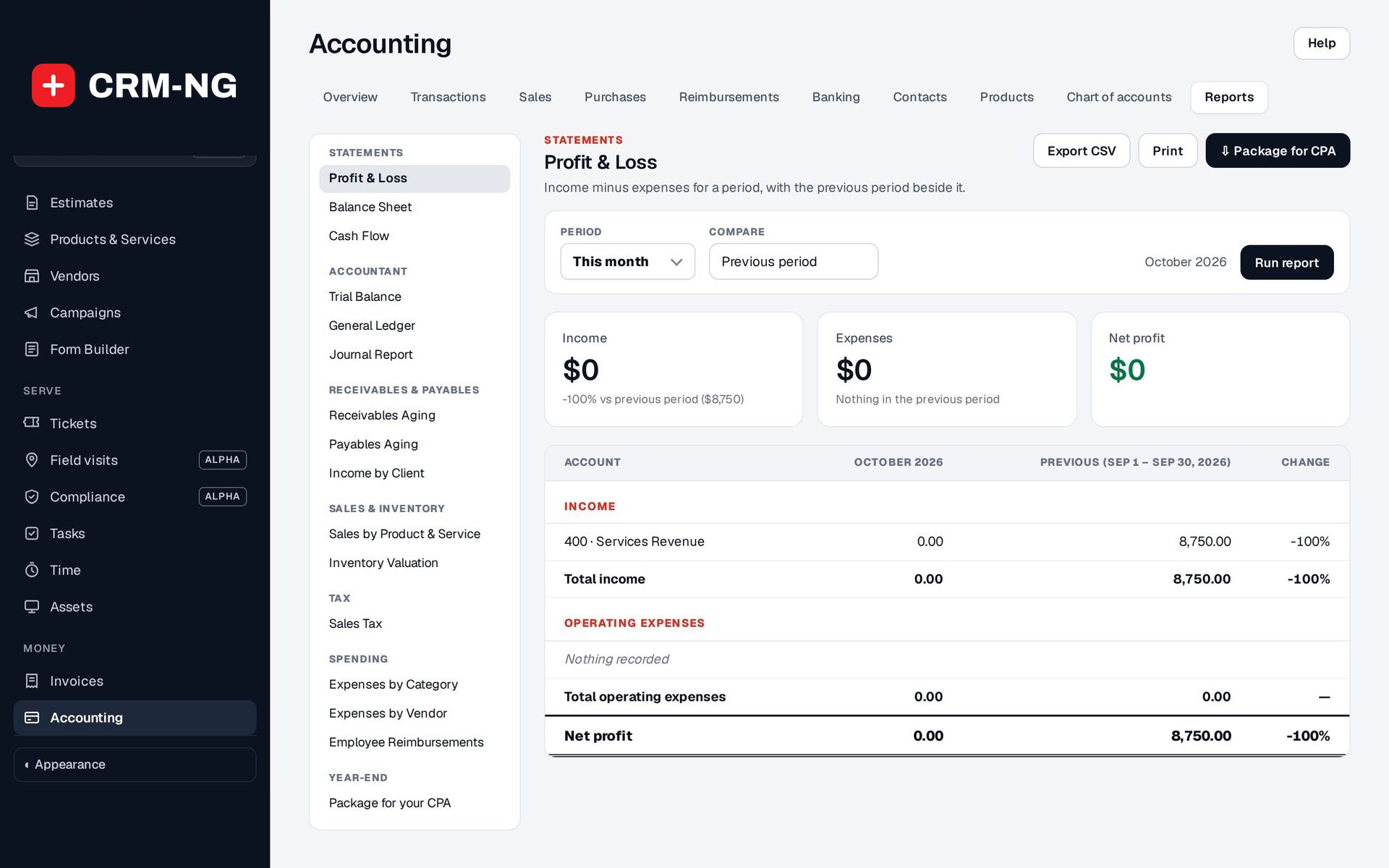
- Profit and loss with the previous period beside it
- Export CSV or print any report
-
Ready for your accountant
A year-end package for your CPA in one download.
- Report PDFs and CSVs, ledger data and source records in one export
- Vendor-payment information for 1099 review and optional invoice PDFs
- A closing date stops new entries in a period you have already reviewed
See it in action
Go deeper
- Invoicing and paymentsInvoices built from your estimates, time and expenses, emailed with a Pay online link, followed up by automatic reminders and settled through Stripe.Read more →
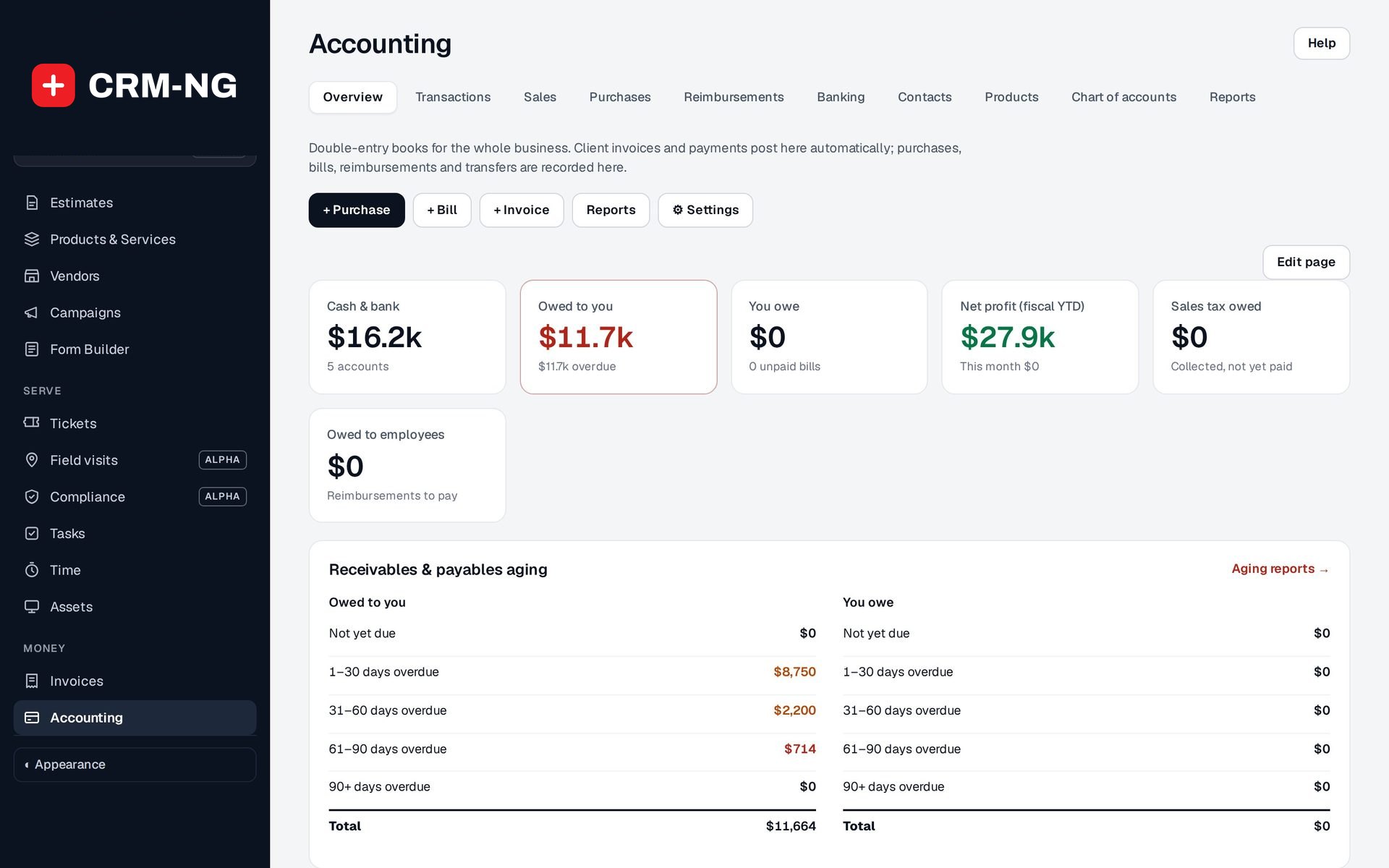 Books, banking and reportsInvoices and payments post automatically; you add purchases, bills and reimbursements, reconcile the bank and run the reports your accountant asks for.Read more →
Who it is for
-
An IT provider or MSP
Bill monthly support, after-hours work and hardware from tickets, time and stock on one invoice, take card payments, and let reminders chase the late ones while technicians keep working.
-
A professional-services firm
Turn accepted proposals and billable hours into invoices, send clients a statement of account each month, and give your accountant a clean year-end package instead of a pile of exports.
-
A trades or field business
Record supplier bills and parts as you buy them, pass billable materials on to the client at cost plus markup, and reconcile the bank without retyping anything.
-
An agency or consultancy
See which clients bring in the income, who pays slowly, and where the money goes, from the same records the team uses every day.
Works with the rest of CRM-NG
- CRM
Clients and companies are the billing contacts, and each one shows its invoices, payments, outstanding balance and statement on its own page.
- Sales
An accepted estimate becomes a draft invoice, and vendors from Sales are the suppliers on your bills and in the expense reports.
- Service Desk
Time logged on tickets, and parts used on them, can be billed straight onto an invoice.
- Project Manager
Billable project time flows onto invoices, so a project's billing comes from the work recorded on it.
Questions
Do I have to use the books, or can I just send invoices?
You can simply invoice and take payments. Statements and the client portal billing pages are built from invoices and payments alone, so they work even if you keep the books somewhere else.
Does it replace my accountant or file my taxes?
No. It records and reports your transactions and builds a package your accountant can review. Payroll and tax filing are not part of it.
How do card payments work?
You connect your own Stripe account. Clients pay from a link in the invoice email, a reminder or the portal, and the payment is recorded on the invoice when Stripe confirms it.
Can I switch over in the middle of the year?
Yes. Enter opening balances for the day you start and bring in outstanding invoices, taking care not to count the same amount twice. Check the Trial Balance with whoever looks after your books.
Can I bring in my bank transactions?
Yes, by importing a CSV statement from your bank. Each line is then matched to an existing entry, added to the books or ignored.
Who can see the financial figures?
The Accounting screens are for staff you authorise. Clients only see their own invoices, payments and statements in their portal.
See Accounting running on your own data.
Every module runs on CRM-NextGen Cloud: we set it up and run it for you. Beta members get the first invites and hear pricing first.