
Workflow
Set up the follow-ups your team should not have to remember.
Automation rules and a visual Workflow Builder: triggers, conditions, actions, waits, schedules and webhooks, with a library of ready-made workflows. For any team that keeps doing the same follow-up by hand.
- A visual Workflow Builder
- A library of ready-made workflows
- Triggers, conditions and actions
- Waits, schedules and branches
- Webhooks in and out
- A record of every run
Why it matters
Every business runs on follow-ups: call the new lead today, chase the invoice at 30 days, ask for feedback when a ticket is resolved, renew the warranty before it ends. Today they live in people's heads and calendars, so they happen when someone remembers. When that person is busy or away, the lead goes cold and the invoice waits.
-
Follow-ups that always happen
Reminders, nudges and hand-offs run on their own, at the right moment, whether or not anyone remembers.
-
Faster response
New tickets and leads are routed, assigned and escalated as soon as they arrive, so clients wait less.
-
Time back for real work
The repetitive admin between your tools is done for the team, and every run is recorded so you can see what happened and why.
How it works
-
Start from the library or a blank map
Add the recommended set, switch on individual ready-made workflows, or open one with Customize to change it first.
-
Choose when it starts
Pick a trigger such as a ticket created, an invoice overdue by 30 days, a deal idle for a week, a schedule or an incoming webhook, and add conditions.
-
Add the steps
Send emails, create tasks, assign tickets, change stages, draft invoices or call a webhook, with waits and branches in between.
-
Test before it goes live
Run a dry test on a real record to see each decision and what would happen, without sending anything or changing records.
-
Switch it on and watch the runs
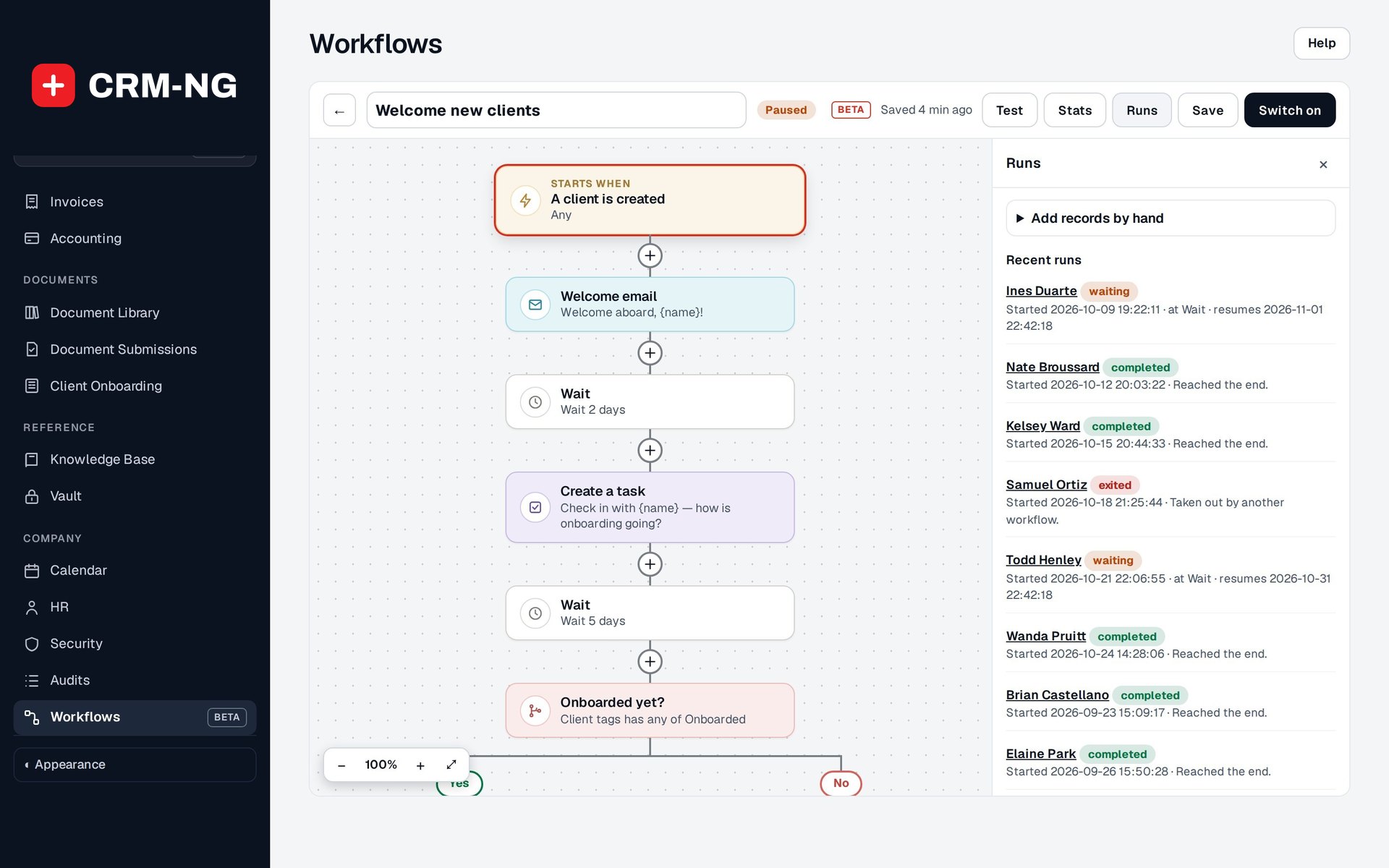
Every run is recorded with its decisions and results, and Stats shows how records move through the workflow.
What Workflow does
Anyone tired of doing the same follow-up by hand.
-
Start from the library
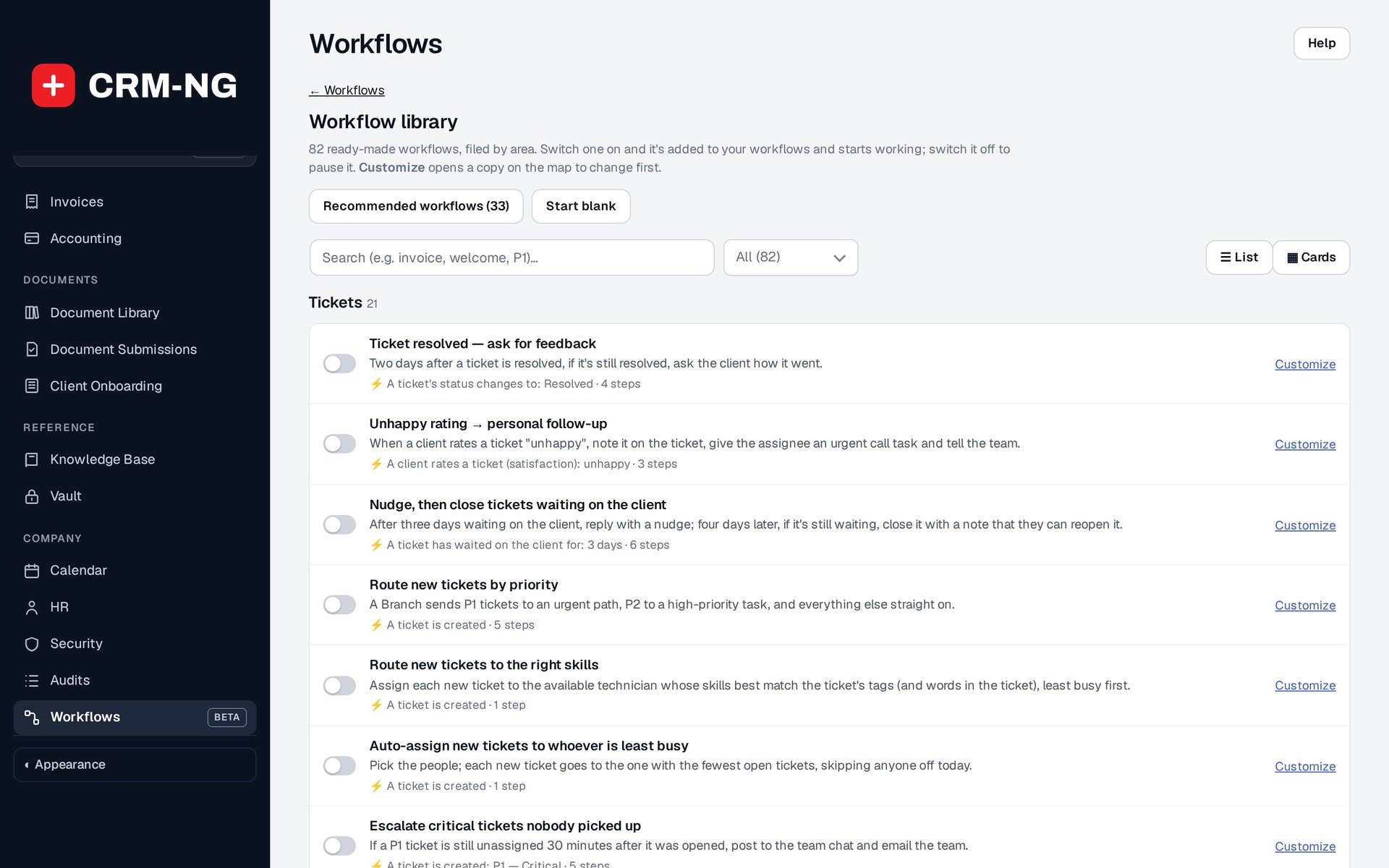
Dozens of ready-made workflows by area: route tickets, chase invoices, welcome new clients.
- 82 ready-made workflows filed by area: tickets, clients and leads, deals and estimates, billing, projects, work, assets, bookings, HR, forms and campaigns
- A recommended set you can add in one go, switched off until you have looked
- Switch one on and it starts working; Customize opens a copy on the map to change first
-
Build your own
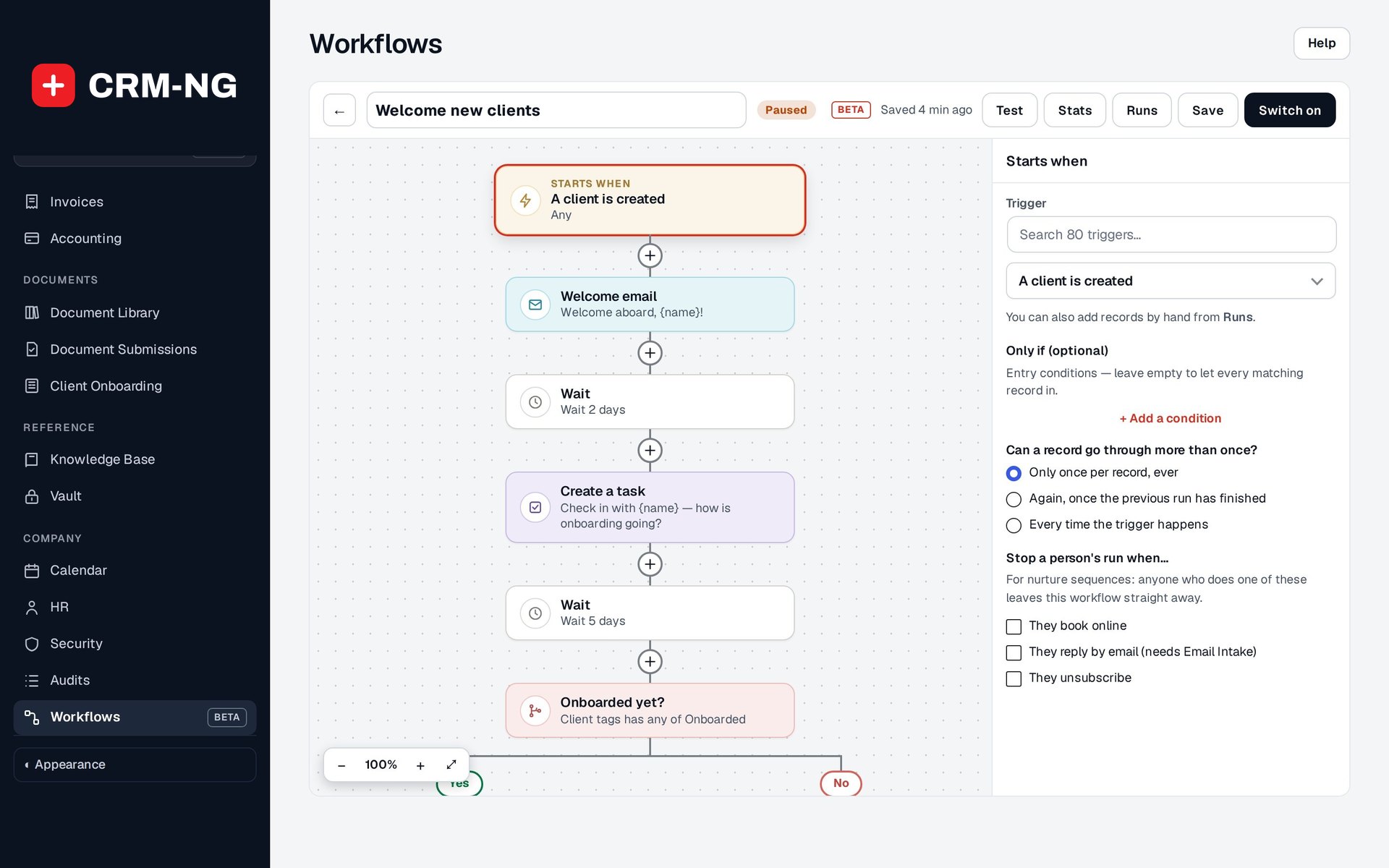
Draw a workflow on a map: a trigger, the conditions it checks and the actions it takes.
- Entry rules: once ever, again after the last run finishes, or every time
- Nested all / any condition groups, such as an active client on plan A or plan B
- Conditions on status, owner, dates, tags, segments, service plan, balance owed and custom fields
-
Waits and branches
Wait a day, check again, take a different path if nothing changed.
- Wait for a time, a date, a weekday, business hours or a date on the record
- Wait until a condition matches, with a timeout
- If / else, Branch with up to six paths, and Split across two to four weighted paths
- Goal steps that wait for something to happen on the record
-
Across every module
Tickets, deals, invoices, leads, HR and more can start a workflow.
- Tickets: created, replied, idle, unassigned, reopened, SLA due soon or breached, satisfaction rating
- Sales and billing: deal stage or idle, estimate expiring, invoice due or overdue, payment received
- Clients, tasks, time, projects, bookings, forms, campaigns, stock levels, warranties and HR events
- Only the modules you have switched on appear in the editor
-
Actions that do the work
The steps a workflow can take on your records.
- Send an email, reply on a ticket, notify people or post to a chat channel
- Create tasks, deals, leads, tickets and draft invoices (never sent without review)
- Assign tickets round-robin, to the least busy person or by staff skills; escalate to the assignee's manager
- Change stages, priority, tags, owners and follow-up dates; start or stop other workflows
-
Webhooks
Send events to other systems, or start a workflow when they call in.
- Outgoing: call a webhook as a step in any workflow
- Incoming: each workflow gets its own secret address for tools such as Zapier, Make or a website form
- Incoming calls are limited to 60 a minute and must be allowed in settings first
-
Schedules and manual enrolment
Not everything starts with an event.
- Run on a schedule with no record attached, for team emails, tasks and reports
- Add records by hand from Runs
- Scans can enrol records that already match when you switch a workflow on, after showing you the count
-
A record of every run
See what ran, when and why.
- Test: a dry run showing each decision and intended action
- Runs: each record's path, step results and any errors
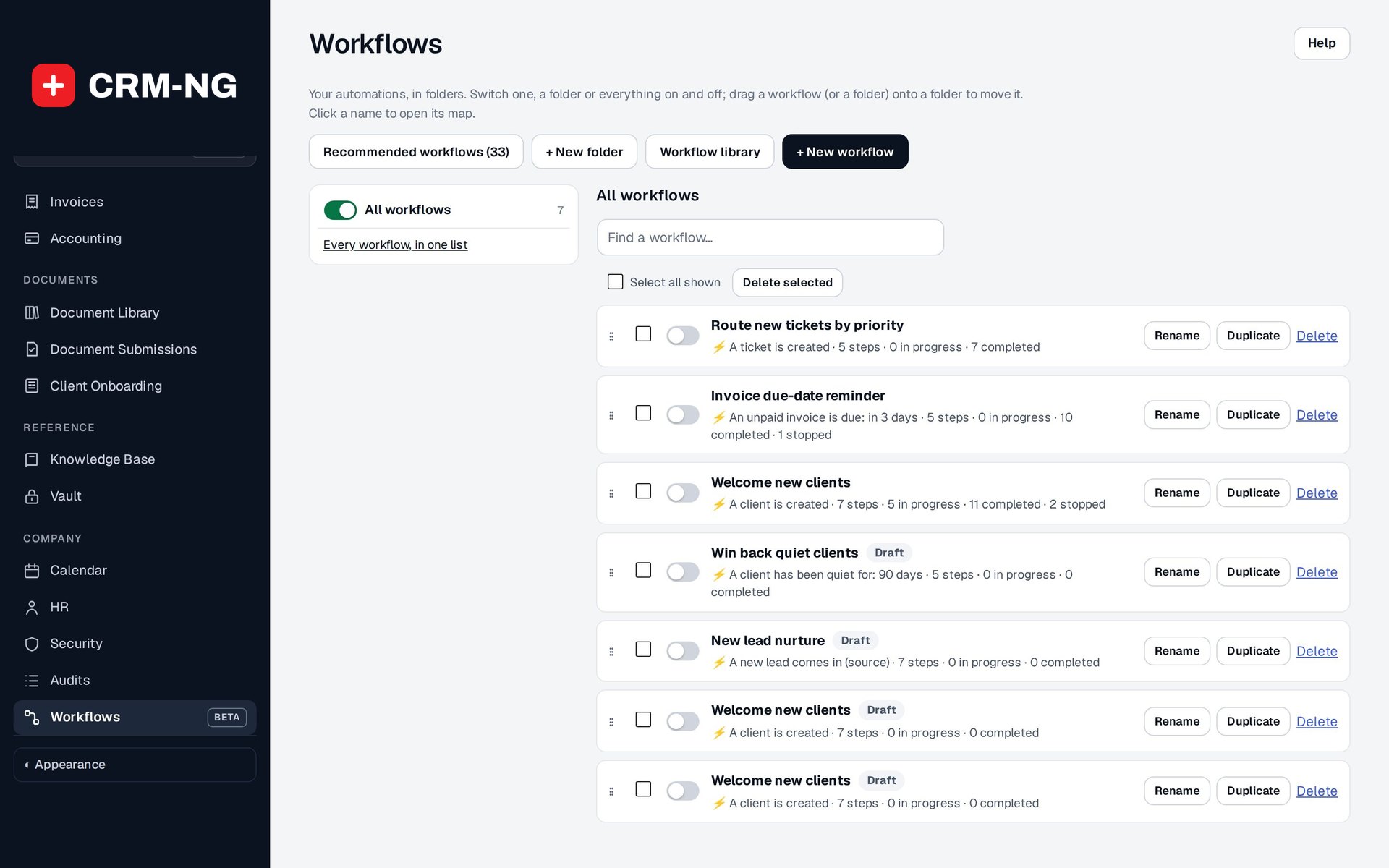
- Stats on the map, and folders to switch whole groups on or off
-
Simple rules too
Classic when-this-then-that rules for one-step automations.
- Event, conditions (all or any) and one action
- Kept in settings, alongside the visual builder for longer processes
See it in action
Go deeper
- Workflow BuilderA visual map for multi-step automations: triggers, conditions, waits, branches, actions and goals, with dry-run testing and a record of every run.Read more →
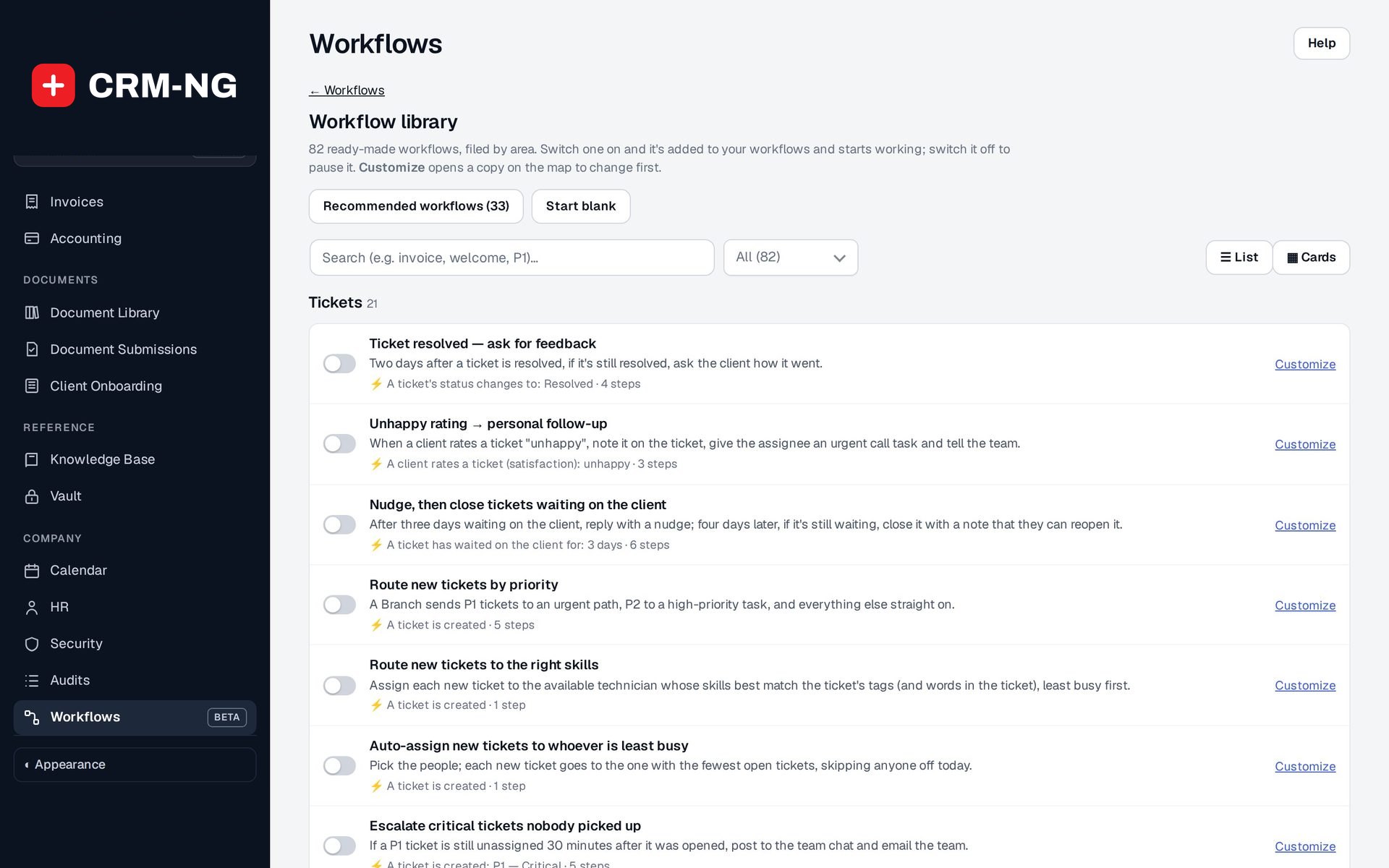 Ready-made libraryA library of ready-made workflows for tickets, sales, billing, projects, assets, bookings, HR and marketing, each one switched on in a click or customised first.Read more →
Who it is for
-
An IT provider or MSP
Route new tickets by priority or skills, warn the assignee before an SLA is due, escalate unassigned P1s to the team chat, nudge clients who have gone quiet on a ticket and ask for feedback when it is resolved.
-
A professional-services firm
Call new leads within the day, send the proposal within a day of the Proposal stage, turn accepted estimates into draft invoices and plan the work, and check in with clients who have gone quiet.
-
A trades or field business
Note and bill on-site visits, remind clients before an estimate expires, reorder stock at its minimum and chase invoices at 30 and 60 days.
-
An agency or consultancy
Kick off new projects within three days, review before delivery, nurture new leads with a short email series and follow up anyone who clicks a campaign link.
Works with the rest of CRM-NG
- Service Desk
Ticket events start workflows, and workflows can assign, prioritise, tag, reply to and escalate tickets.
- Sales
Lead, deal and estimate events start workflows, which can create leads and deals, move stages and turn an accepted estimate into a draft invoice.
- Marketing
Form submissions, campaign clicks, unsubscribes and segment changes can start a workflow, such as a nurture series or a sales call task.
- Live Notifications
Adds the Notify people and Post to a chat channel actions, so any workflow can alert a person on the bell and by email, or a Slack or Teams channel.
Questions
Can I try a workflow without it emailing clients?
Yes. Test runs a dry run on a record you choose and shows each decision and intended action without sending messages or changing anything.
Do I have to build workflows from scratch?
No. The library has ready-made workflows for each area. Switch one on as it is, or open it with Customize and change it first.
Will switching on a workflow act on all my old records?
Only for triggers that scan records, and only if you choose to; it shows you how many records would be enrolled first.
What happens if I pause a workflow?
New runs stop. Messages already sent and records already changed are not undone, so check runs that are waiting part-way through.
Can it connect to other software?
Yes, through webhooks. A workflow can call another service, and another service can start a workflow through its own secret address.
Can a workflow create an invoice and send it?
It can create a draft invoice, which a person reviews and sends. Workflows never send an invoice on their own.
See Workflow running on your own data.
Every module runs on CRM-NextGen Cloud: we set it up and run it for you. Beta members get the first invites and hear pricing first.