
Web Integration & Portals
Give clients a place to see their work and do their part.
A client portal for tickets, invoices, quotes and documents, plus onboarding forms, lead forms, a service finder and online booking. For any business whose clients need to log in, fill in or book.
- Client portal
- Onboarding forms
- Lead and contact forms
- Service Wizard
- Online booking
Why it matters
Clients email to ask where their request is up to, which invoice is outstanding, or whether you got the signed agreement. Onboarding means a dozen emails with attachments, the enquiry form on your website drops messages into an inbox nobody owns, and booking a call takes three messages to agree a time. Every one of those emails is your team's time.
-
Fewer where-is-it emails
Clients sign in to follow their tickets, see invoices and quotes, and open the documents waiting for their signature, so they check for themselves instead of asking you.
-
Clients onboarded faster
Assign the forms a new client needs, let them fill them in online, and see at a glance what is submitted and what is still outstanding.
-
Every enquiry lands in the CRM
Lead forms, the Service Wizard and online bookings all arrive as leads or client records with the answers attached, ready for your team to follow up.
How it works
-
Choose what clients can do
Switch on the parts you want: the client portal, onboarding forms, lead forms, the Service Wizard and online booking. Each works on its own.
-
Build your forms
Create lead forms in the Form Builder and map each answer to a CRM field; assign onboarding forms to a client or a whole company.
-
Invite your clients
Clients and staff use the same sign-in, and each lands in the right place: clients in their portal, your team in CRM-NG.
-
Follow up from the CRM
Submissions, bookings and portal requests appear on the client or lead record, with a task where someone needs to act.
What Web Integration & Portals does
Any business whose clients need to log in, fill in or book.
-
A client portal
Clients sign in to open tickets, see invoices and quotes, sign documents and fill in forms.
- A dashboard of what needs attention: open tickets, items awaiting their signature, notifications
- Tickets with search, filters, status and the full conversation
- Invoices with Pay now where online payment is set up
- Profile details, with an email change sent to your team as a request
-
Requests and approvals
Clients choose from your common requests, and their managers approve the ones that need it.
- Common requests from your service catalogue
- Requests awaiting your approval, with Approve and Deny
- An outage banner your team can switch on
- An emergency phone number for urgent incidents
-
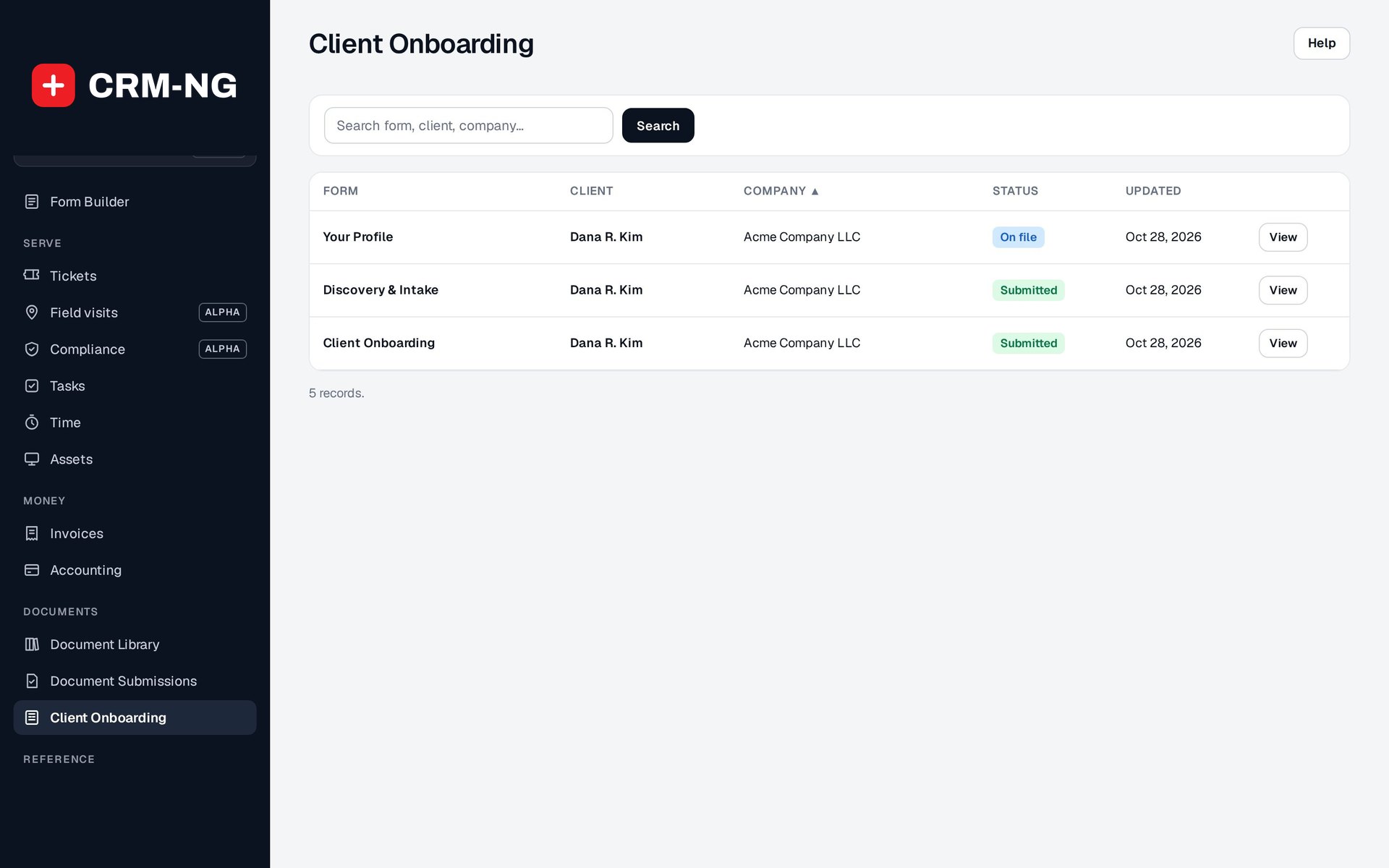
Onboarding without email chains
Assign onboarding forms per client or company and see what is still outstanding.
- Profile, discovery and intake forms
- Assigned directly or through the company
- On file and Submitted status for each form
- Staff view of every submitted answer
-
Lead forms that land in the CRM
Build a form, choose where each answer goes, and every submission becomes a lead.
- Up to 24 fields: short and long text, email, phone, URL, number, date, dropdown, checkbox
- Map answers to name, email, phone, company, address or custom fields
- Unmapped answers kept in a private note on the lead
- Live preview, and nothing published until you choose
-
Service Wizard
A few questions that point a visitor to the right service, saved as a lead.
- Questions about industry, company size, problems and compliance needs
- Recommendations from rules you set per service
- Every completion logged and emailed to your team
-
Online booking
Clients book time with your team, and each booking arrives as a lead or client with a task.
- Services such as consultations, assessments and support sessions
- New, rescheduled and cancelled bookings reflected in the CRM
- Each staff member can connect their Google or Microsoft 365 calendar so busy time can't be booked
-
Sign-in that knows who is who
Staff and clients use the same sign-in and each lands in the right place.
- Clients go to their portal after signing in
- A Client Area bar across the top of the portal
- Staff previewing the portal see a Staff View label
-
Each client sees only their own
Clients see their own tickets and the documents assigned to them; wider company access is a deliberate choice.
- Company-wide ticket visibility controlled by the client's service plan and portal role
- Internal ticket notes and staff project files never shown
- Documents shown only to the person they are assigned to
Go deeper
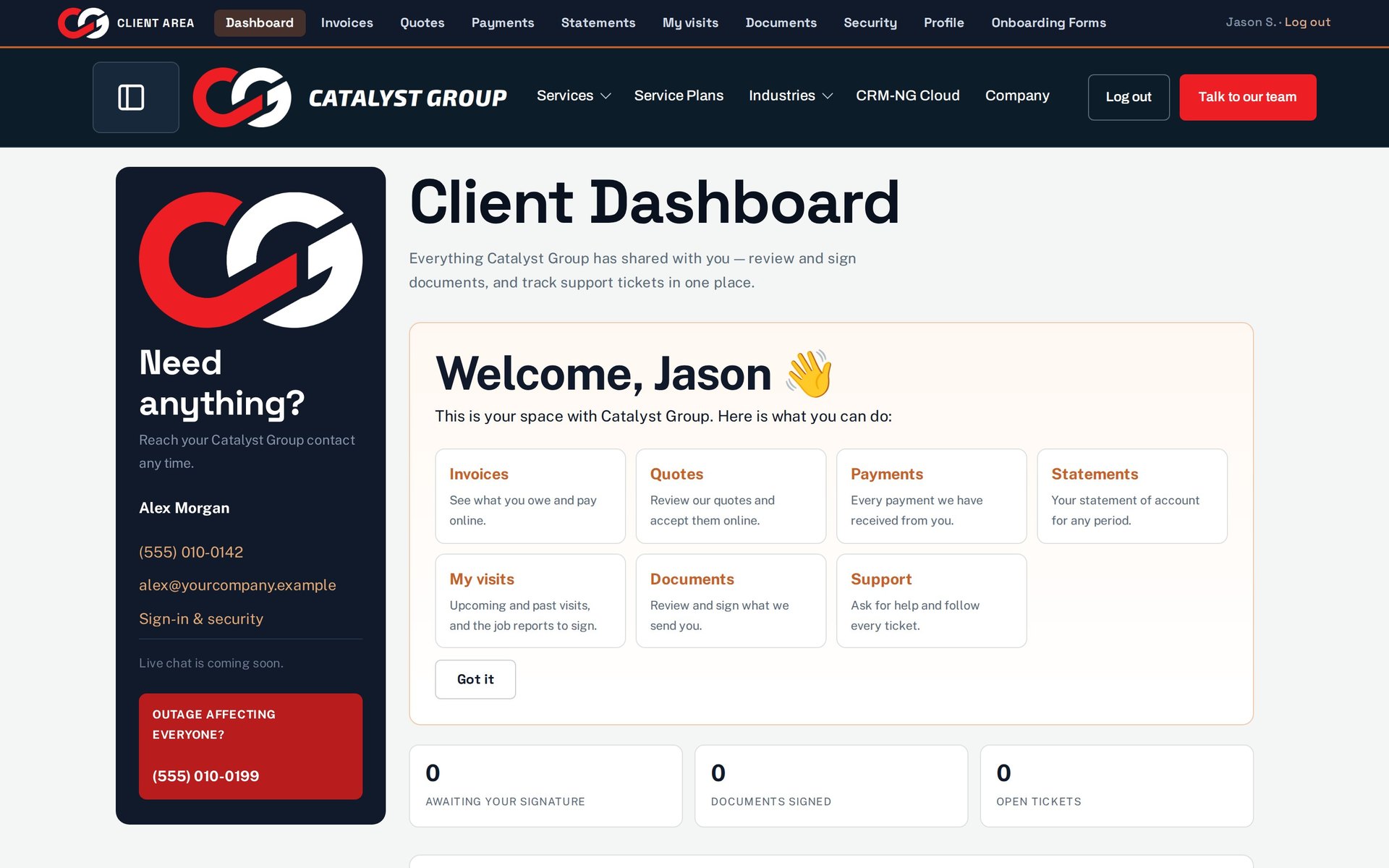 Client portalTickets, invoices, quotes, documents to sign, requests and visits, in a portal that shows each client only what belongs to them.Read more →
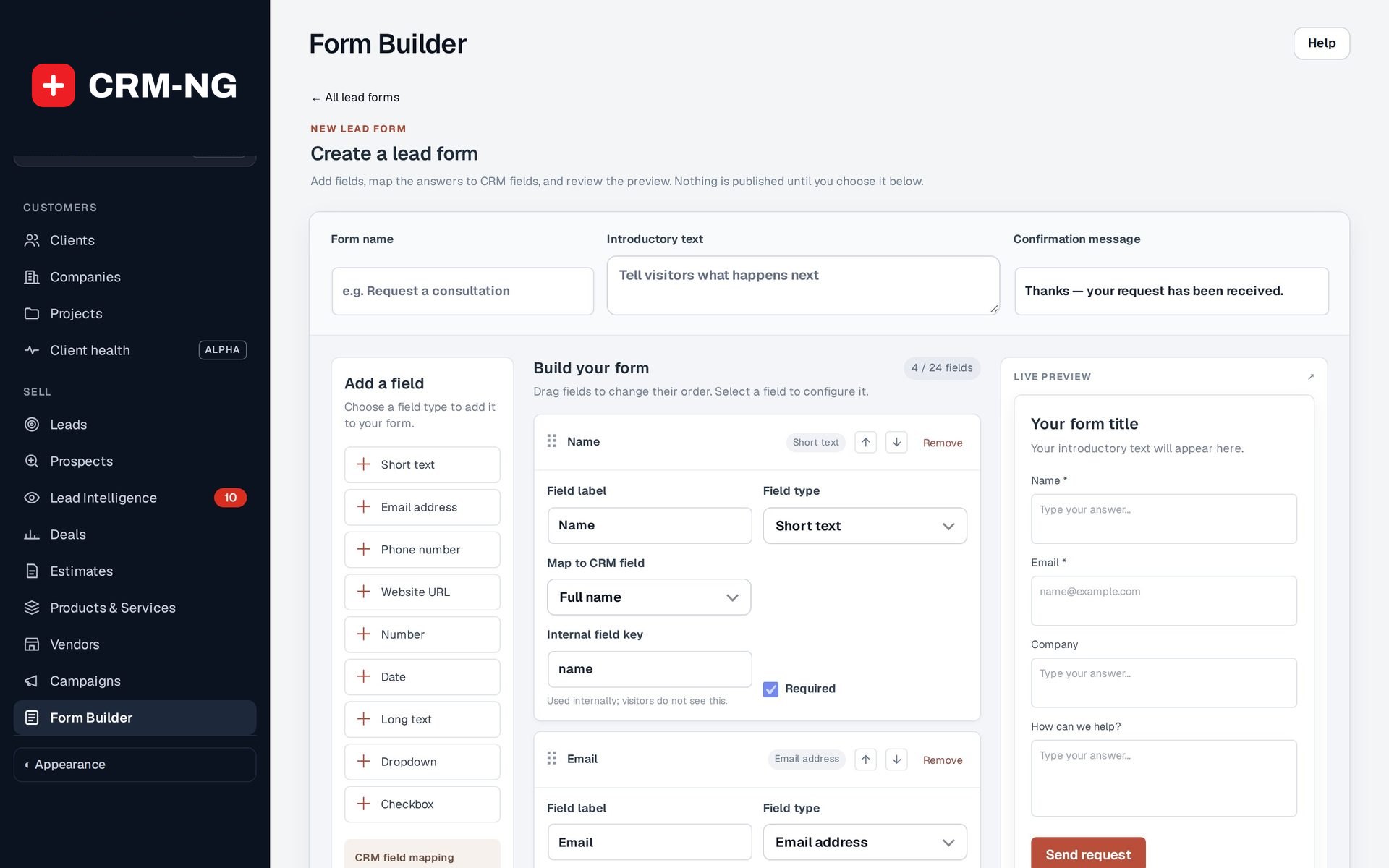 Forms, Service Wizard & bookingLead forms, a guided Service Wizard and online booking bring enquiries into the CRM; onboarding forms collect what you need from new clients.Read more →
Who it is for
-
An IT provider or MSP
Clients open and follow tickets in the portal, request a new starter's laptop from your common requests with their manager's approval, see the outage banner when you have a known incident, and pay invoices online.
-
A professional-services firm
Send new clients their discovery and intake forms, have engagement documents signed in the portal, and let prospects book a first consultation online.
-
A clinic or practice
Let people book appointments online, collect their details through a form that lands in the CRM, and give returning clients one place for their documents.
-
An agency or consultancy
Put a lead form on your website, use the Service Wizard to point visitors at the right package, and keep client documents and invoices in one portal.
Works with the rest of CRM-NG
- CRM
Form submissions, wizard results and bookings become leads or attach to existing clients, with notes and follow-up tasks.
- Service Desk
The portal's tickets, common requests, approvals, outage banner and emergency number all come from Service Desk.
- Document Manager
Documents assigned to a client appear in the portal to open and sign.
- Knowledge Base
Articles can be offered to clients in the portal to help them find an answer before opening a ticket.
- Accounting
Clients see their invoices in the portal and can pay online where card payments are set up.
- Field Service
Clients see upcoming and past visits under My visits and sign each job report there.
- Calendar
Online bookings appear on the Bookings layer of the calendar for the people they were booked with.
Questions
Can clients from the same company see each other's tickets?
Not by default. Clients see their own tickets. Company-wide visibility depends on their portal role and their service plan, so you decide who gets the wider view.
Do clients need to install anything?
No. The portal works in any browser, on a computer or a phone.
Is there live chat in the portal?
No. Clients communicate through tickets, which keeps every conversation on record with an owner and a deadline.
What is the difference between a lead form and an onboarding form?
Lead forms are public and collect enquiries from new prospects. Onboarding forms are assigned to existing clients to gather what your team needs before starting service.
Do my staff use the same portal?
Staff work in CRM-NG itself. If you use HR, employees get a separate employee portal for their leave, documents and requests.
See Web Integration & Portals running on your own data.
Every module runs on CRM-NextGen Cloud: we set it up and run it for you. Beta members get the first invites and hear pricing first.