Install the plugins
CRM-NG is a free core plugin (CRM-NG), a CRM-NG Pro plugin, and module plugins. Install the core and Pro first. Each module states on the Plugins screen which plugins it needs, and WordPress will not activate it without them.
1. Upload and activate CRM-NG and CRM-NG Pro
- In WordPress, open Plugins → Add New Plugin → Upload Plugin.
- Choose
crm-ng.zip, press Install Now, then Activate. - Repeat for
crm-ng-pro.zip.
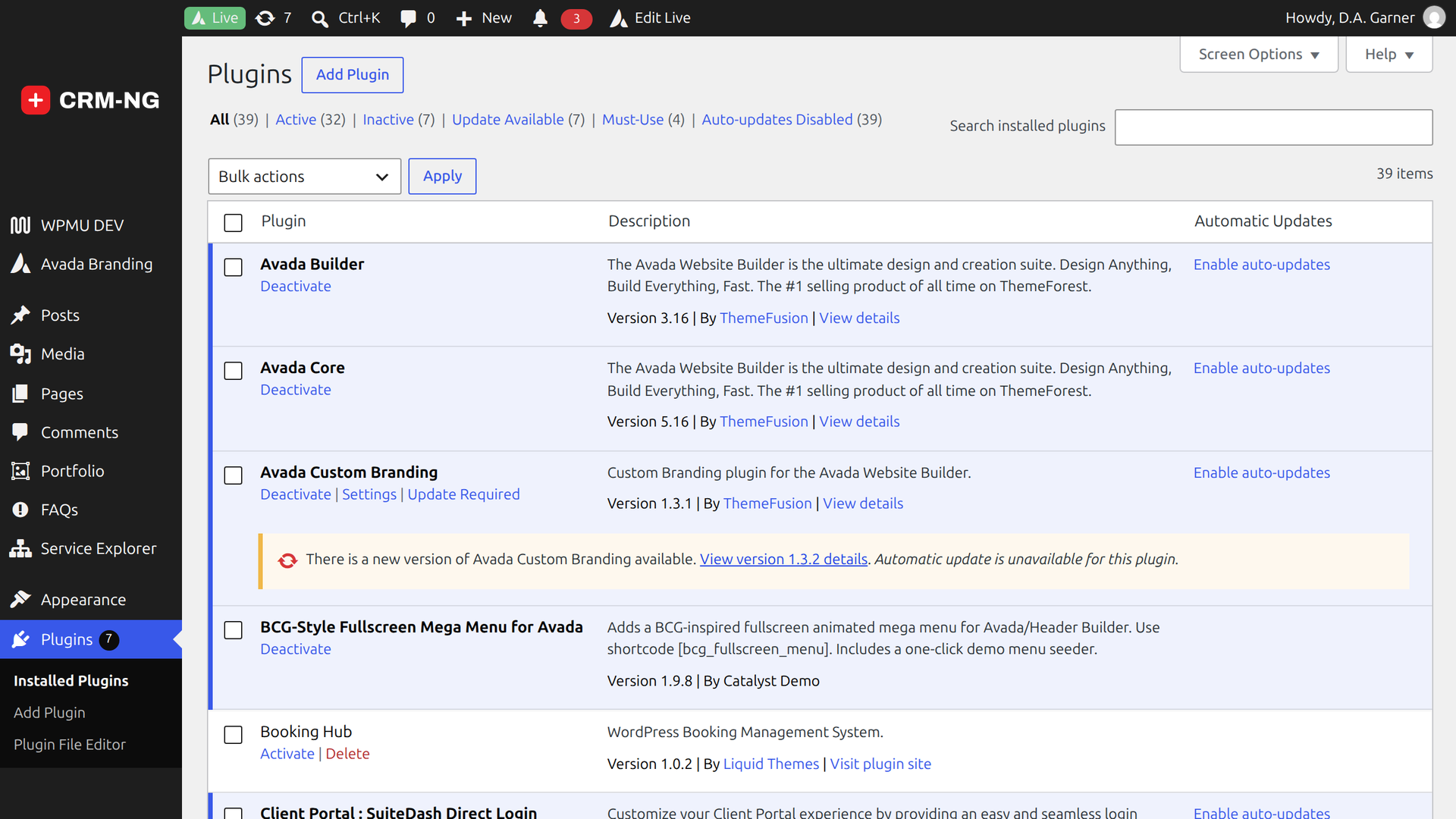
On first activation CRM-NG creates its database tables and the private folder wp-content/ccp-private/, writes the
rule that stops the web server from handing that folder out directly, and opens the setup wizard.
Upgrading from CatalystRM
CRM-NG 4.0 was previously called CatalystRM. On the first start after the upgrade, stored settings are renamed once and nothing needs to be entered again.
2. Enter your licence key
Open Settings → License, paste the key from your purchase email and save. The key is checked on your own server against a signature built into the plugin, so activation works even on a site with restricted outbound access. The screen shows the key's status and the features it unlocks.
Info
If a key expires, nothing is deleted or hidden. Licensed features stop being offered until the key is renewed.
3. Add your modules
Upload and activate each module the same way. A typical service business starts with Sales, Service Desk, Accounting and Web Integration & Portals.
Some modules depend on others:
| Module | Needs |
|---|---|
| Every module | CRM-NG and CRM-NG Pro |
| Inventory | Assets |
| Documentation Vault | Knowledge Base |
4. Check Settings → Modules
Open Settings → Modules. Every installed module is listed with an on/off switch that does the same as activating or deactivating it on the Plugins screen. A module another one needs cannot be switched off while that one is on.
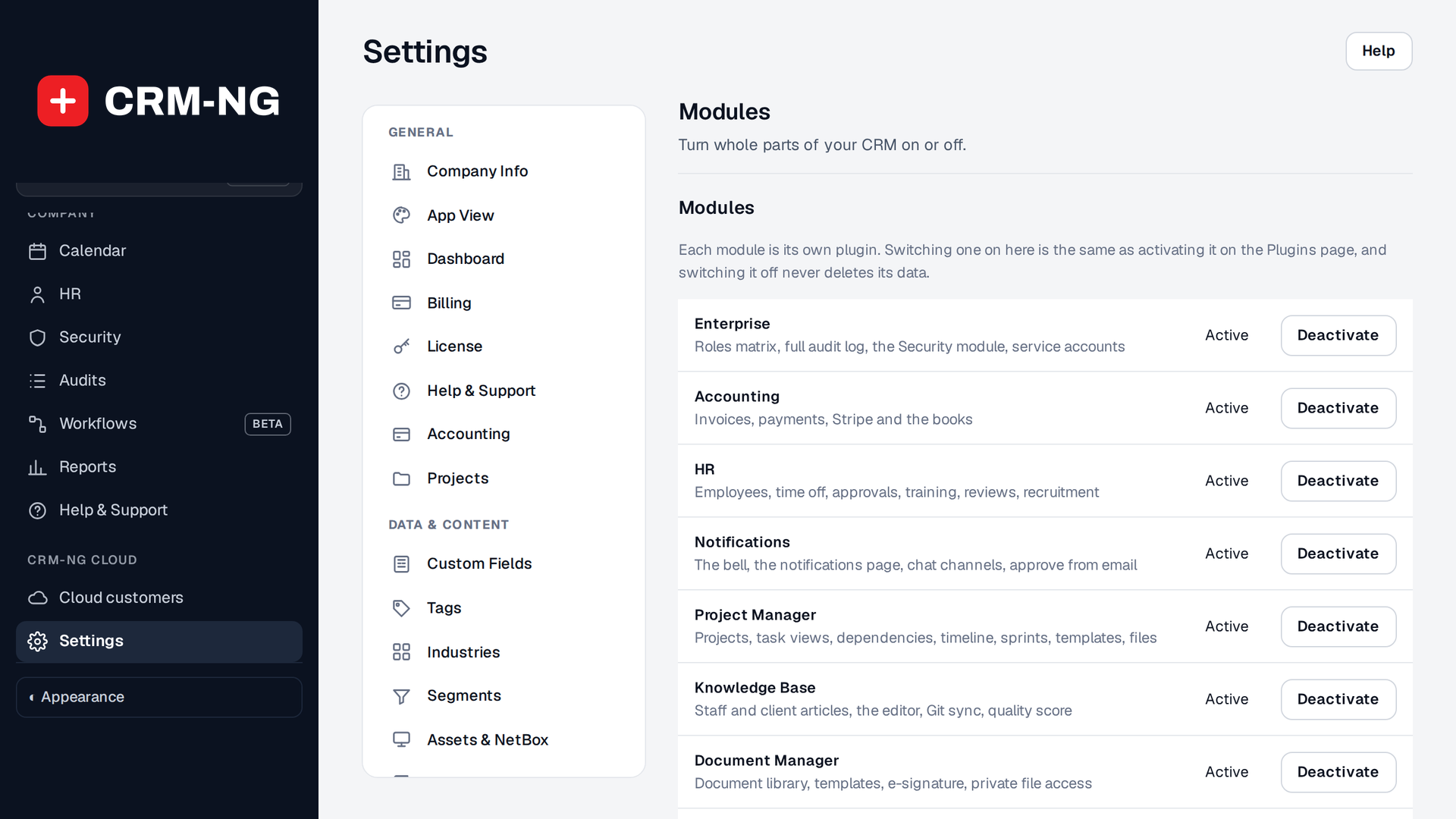
Switching off keeps everything
Switching a module off, or even deleting its plugin files, keeps its data and database tables, so reinstalling brings everything back. The one exception is CRM-NG SMTP Email, which removes its own settings on delete only if you ticked its remove data on uninstall option.
Expected result
- CRM-NG and CRM-NG Live appear in the WordPress menu.
- Settings → Modules lists your modules as on.
- Settings → License shows the key as active, with the features it unlocks.
Next: the setup wizard, then the classic admin.