Client records
Maintain customer details and find the tasks, documents and service history associated with a person.
Needs: Core
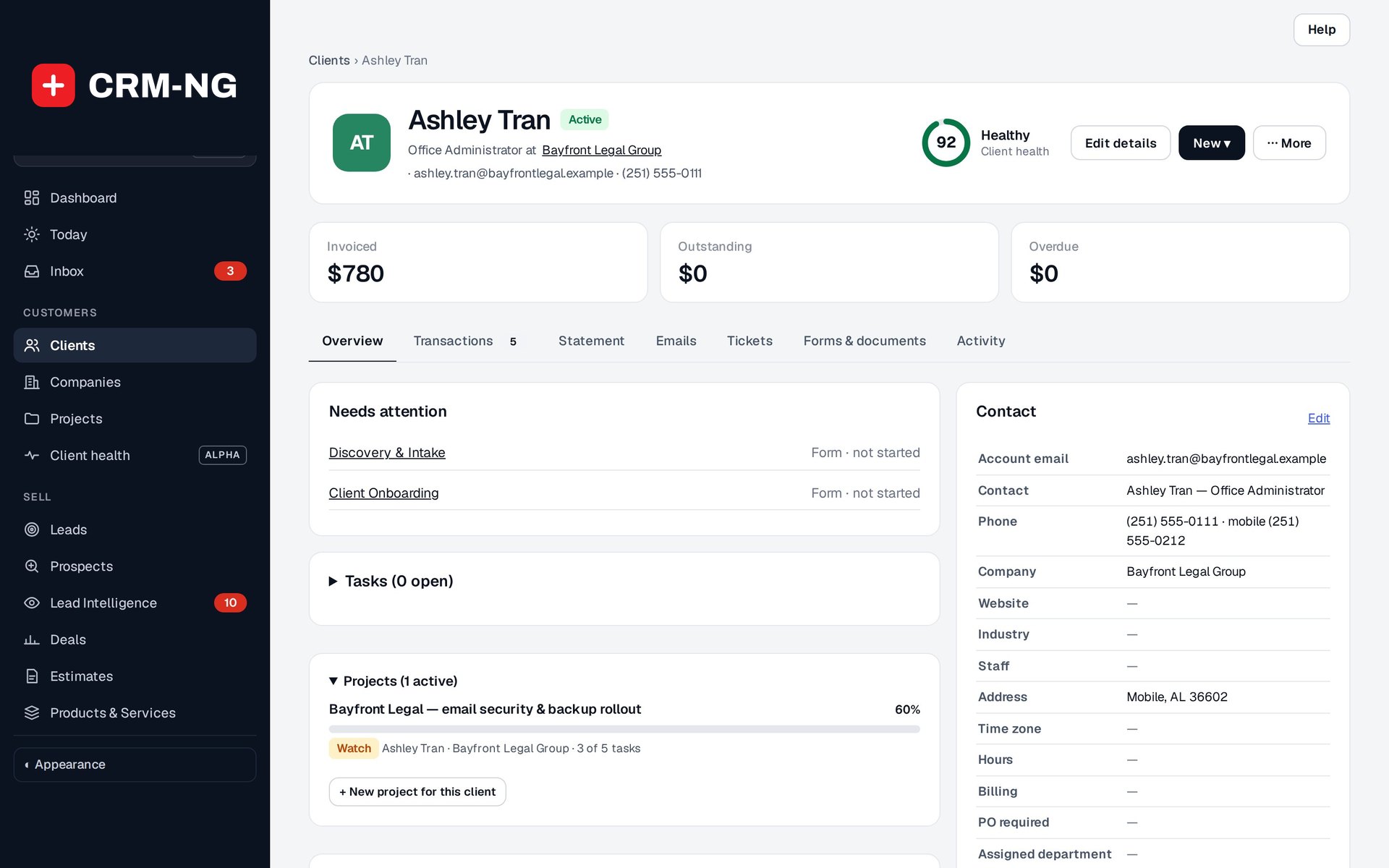
This example client record brings the health score, the money they owe, tabs for transactions, emails and tickets, and the contact and CRM details together.
A client record has its own sign-in account. It brings together the person's contact details, company, notes, tasks, projects, forms, documents, tickets and billing information. Use a lead while a person is still being qualified and does not need a client login.
Add or update a client
- Open Clients and search by name or email. Check the company as well, so you do not create a duplicate.
- Add the client or open the existing record. Check the account email separately from the contact fields; the account email is part of their login identity.
- Enter the contact and company details, then set the owner and CRM stage.
- Review assigned forms, portal role and any service-plan override. Some settings may be inherited from the company.
- Save and reopen the record to check the company and related work.
The available stages include Prospect, Onboarding, Active, On hold and Former. The application may calculate an effective stage from onboarding or account information. If the displayed stage differs from your selection, check those conditions before changing it again.
Use the record during customer work
The contact panels hold the person's details. Tasks and projects show work in progress, while forms and documents show what has been assigned and completed. Links to tickets and time entries let you follow the service history.
Choose the correct visibility when adding a note. A staff observation may belong in a private note, while information intended for the customer needs the appropriate customer-facing route.
The directory supports stage, tag and segment filters, active and archived views, bulk actions and CSV export. Before a bulk change, confirm which rows are selected, especially when the filtered results span several pages.
Archive a client or change access
Archiving keeps the history but removes the client from normal active views. It does not stop them signing in. If the person must no longer sign in, use the account's security controls as well.
Company membership does not automatically grant access to everyone else's records. See client portal permissions before changing that scope. To combine duplicate accounts with existing history, use the merge procedure.