Finding your way around
Use the dashboard, menus, search and record views to find the work you need.
Needs: Core
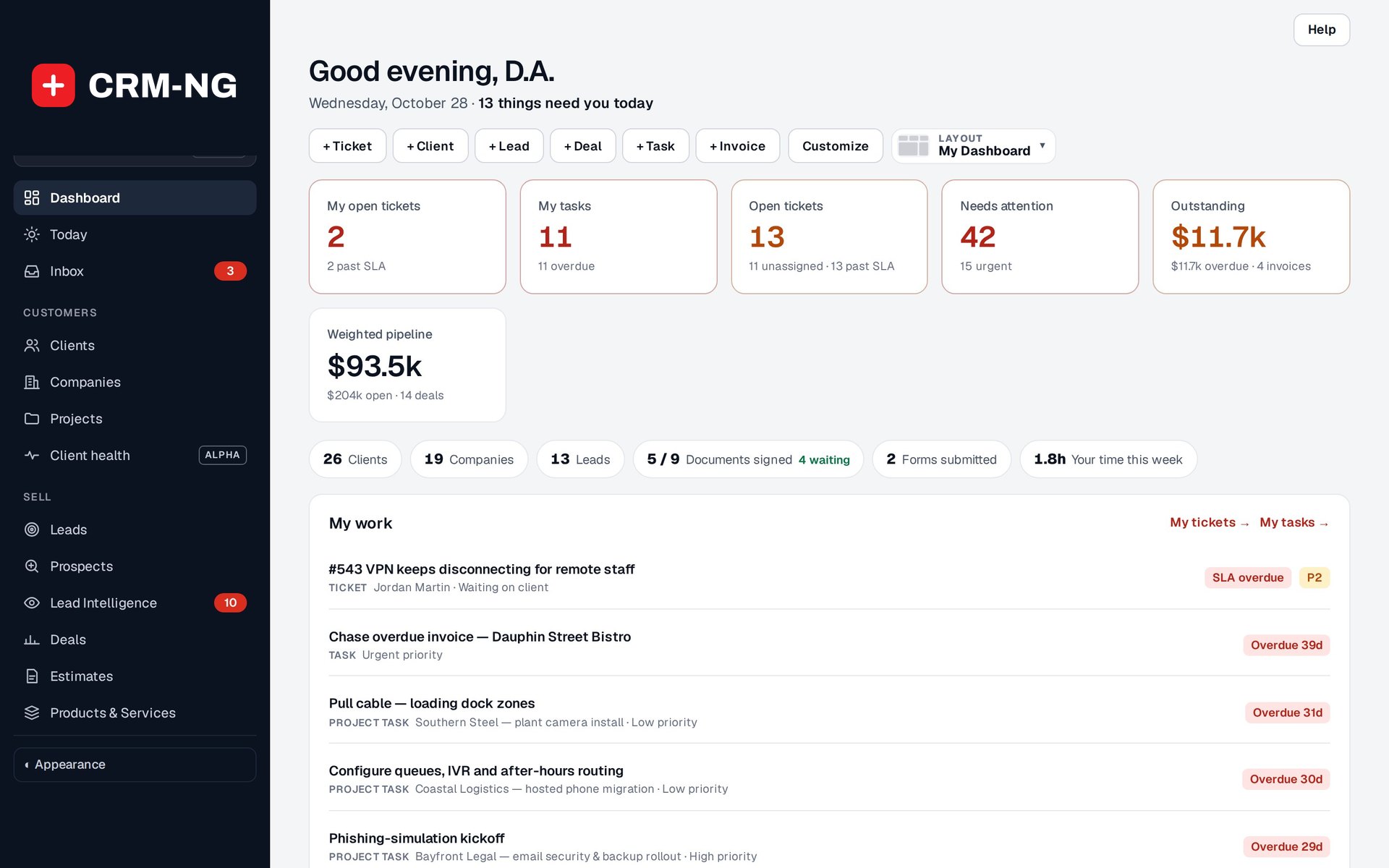
The dashboard shows tasks, open tickets, unpaid invoices and sales opportunities that may need attention.
Your workspace is CRM-NG Live: one menu down the left, grouped by area, with search at the top and Settings at the bottom. (A self-hosted site can also show CRM-NG inside its WordPress menu; see the classic admin.)
The look of CRM-NG Live
Since release 4.7, CRM-NG Live has one look, Modern: a dark menu with line icons, neutral pages, and red used only for work that needs attention now. Each page's title row holds its main buttons, such as + New ticket, and Help. Under Appearance at the bottom of the menu, each person chooses light, dark, their device's setting or a schedule, and Look switches only that person to Classic, the appearance used before October 2026. Record pages for clients, companies, leads, prospects, deals, vendors, projects and employees share one header: a breadcrumb, the name with an initials tile or photo, the main buttons, and ⋯ More for the rest.
Today gathers your day: what needs you, a timeline of your scheduled and due items, the Running timer, what is coming up in the next seven days, and your team. The earlier Today page was retired in 4.7.
Start with the dashboard
The dashboard summarizes your tasks, open tickets, billing and other work needing attention. Select a total or linked item to open the records behind it. The figures can change with the selected period, status filters, enabled modules and your permissions.
On My Dashboard, Customize arranges the cards. Its Heat colours switch tints each card that contains due dates: green when nothing in it is late, then yellow, then red as more items become overdue and stay overdue longer. Save keeps the setting with your layout.
Different totals describe different stages of work. A deal forecast estimates possible sales. An invoice balance shows an amount still due. Collected payments show money recorded as received. Check the underlying records and dates when comparing them.
Choose a view that suits the task
Use a list to search, filter and compare records. A board is useful for seeing work by stage. Timelines and calendars help you review dates and overlapping tasks. Open an individual record when you need its full details, history or related actions.
Project and task views share records. If you change a task's date in one view, that change can appear in the other views without creating a new task.
Find a record with search
Use Search to look across the application, then check the type of result before opening it. One person may have a lead record, a client account and an employee profile, each used for different work. Matching names do not make those records interchangeable.
If you cannot find something, clear filters and check whether the record is archived, completed or closed. Your account's permissions can also limit search results. The troubleshooting guide explains what to check for missing records and menus.
When moving between tasks, check whether a timer is still running. Keeping the correct customer and task selected helps prevent time from being recorded against the wrong job.