Your first client and company
Take one real client all the way through before inviting your team. By the end of the next three pages you will have one client whose record shows a company, a deal, an estimate, an invoice and a closed ticket with time on it, all reachable from one search box.
Clients and companies: how they relate
- A client is a person: the human you email, call and bill.
- A company is the organisation they belong to. It groups its people, and the deals, tickets, documents and invoices that belong to the organisation rather than to one person.
- A client can exist without a company, for example a sole trader or a private individual.
- A lead is someone who has shown interest but is not a client yet. A lead form on your website creates one, and converting it turns it into a client record when the time comes.
Add a client
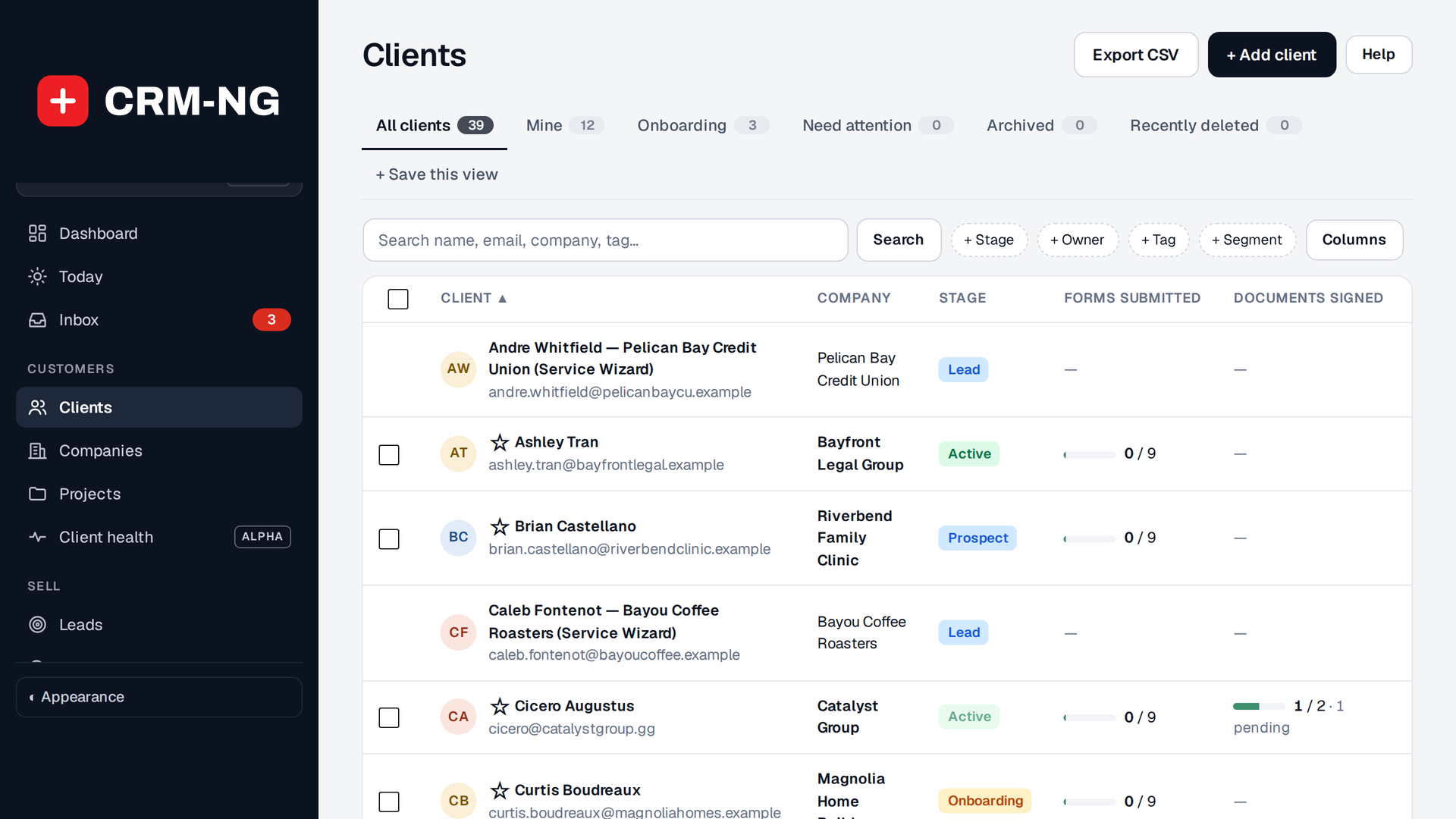
- Open Clients and press Add client.
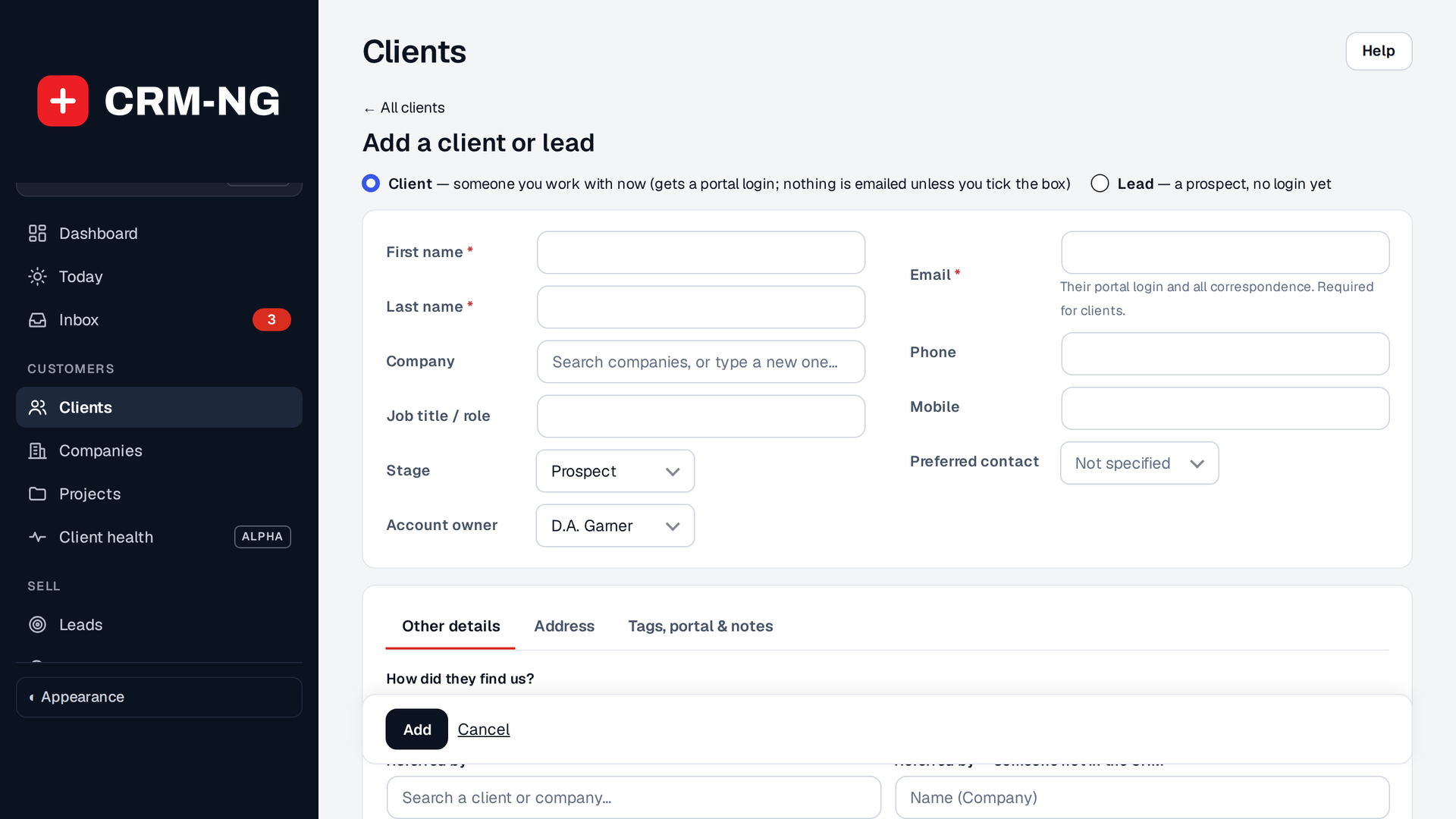
- Enter first and last name, email and phone. Type the phone number any way you like; it is stored as digits and shown in your local format, so searching for any part of the number finds it.
- Choose the stage: Prospect, Onboarding, Active, On hold or Former. Add tags for anything you want to filter by later.
- Save.
Duplicates
If the email already belongs to a client, CRM-NG tells you rather than creating a second record. Existing duplicates can be merged: choose the record to keep, and everything attached to the other one moves across.
Add their company
- Open Companies and press Add company.
- Enter the legal name, the trading name (DBA), address and phone.
- Link the client: from the company's People tab, or from the client's record.
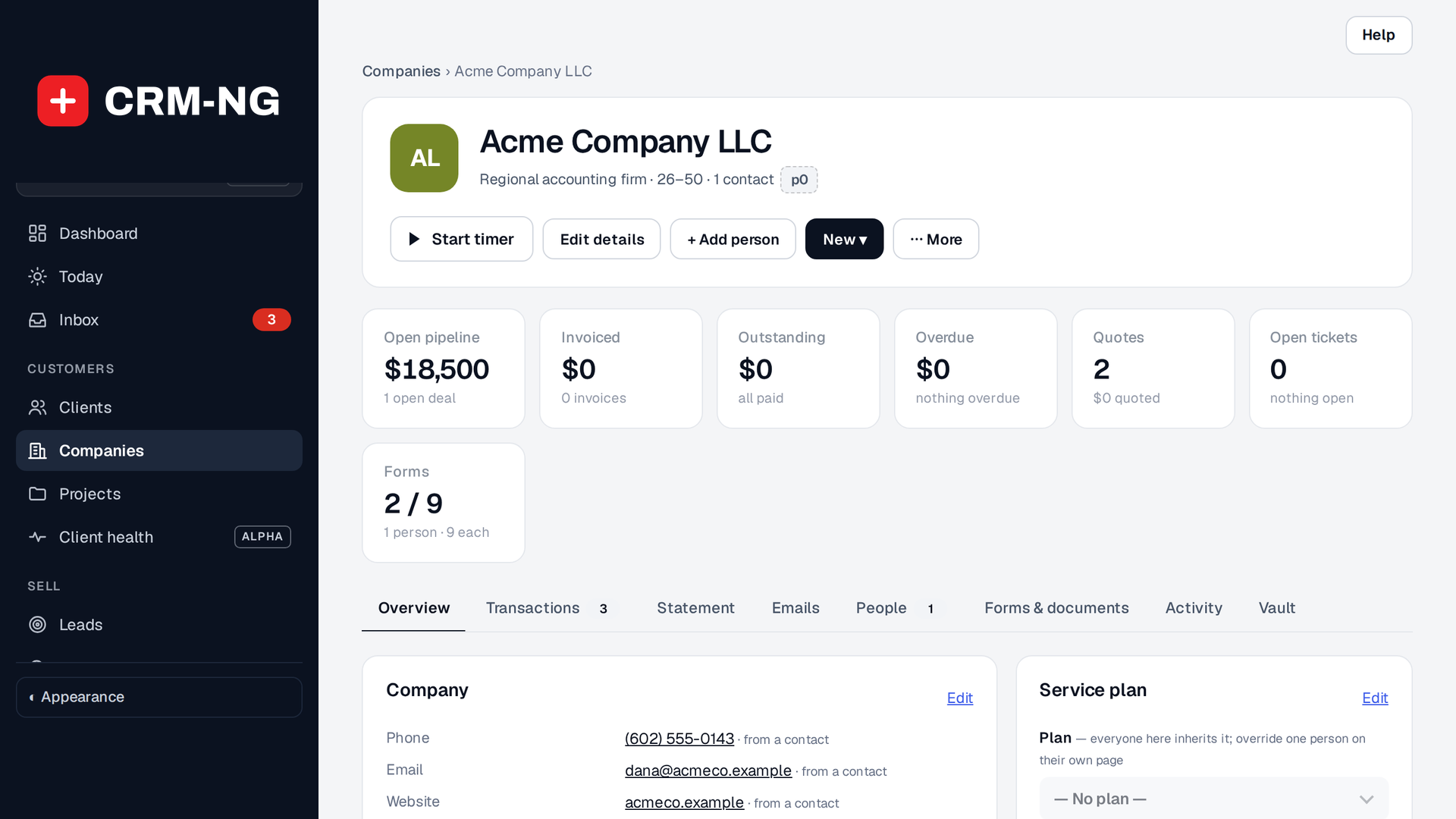
A company page has tabs: Overview, People, Deals, Tickets, Documents, and Vault when the Documentation Vault is on. The Overview's three columns show the service plan, open work, and money.
Notes and tasks
On the client's record:
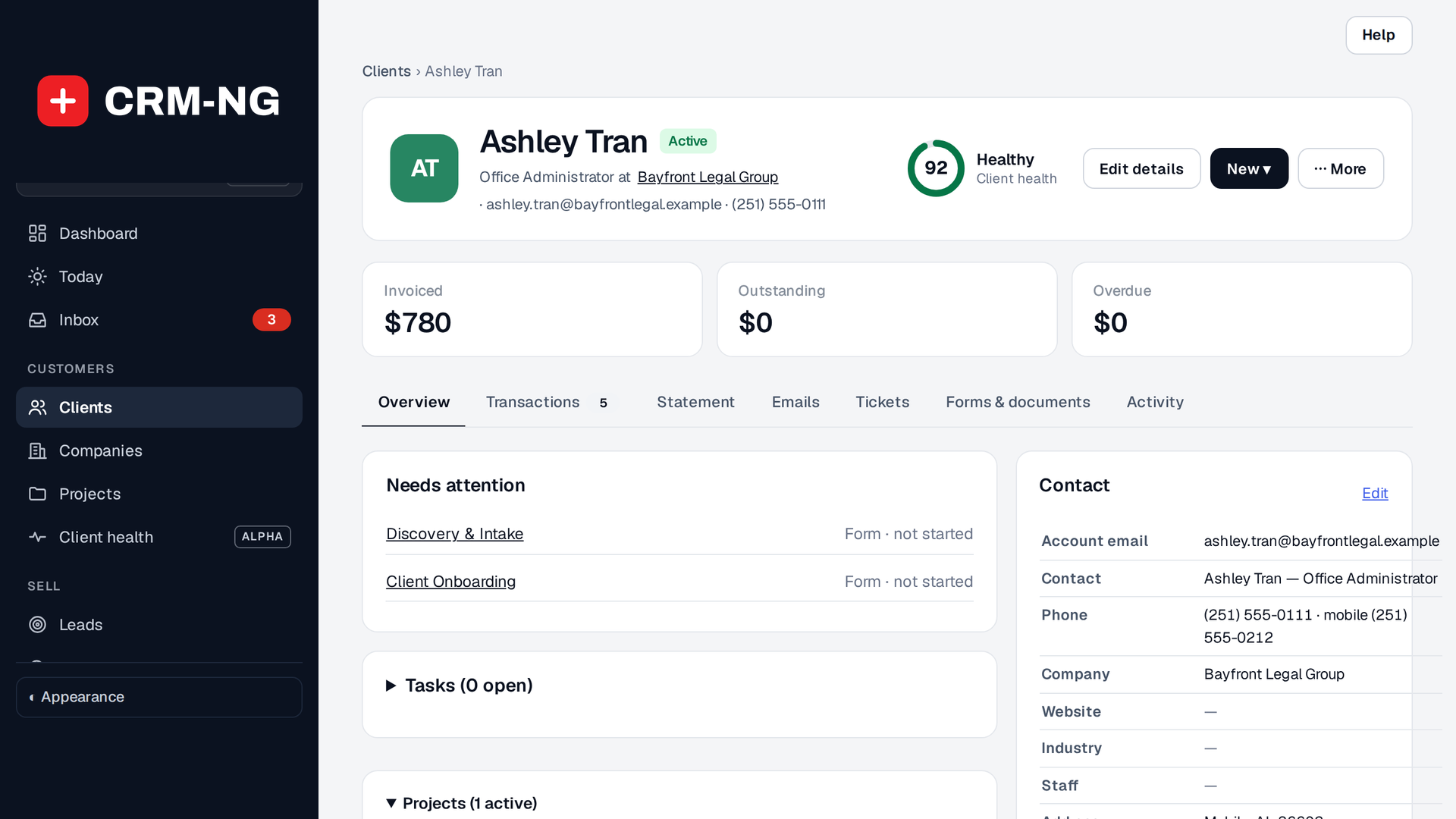
- Add a note: a call summary, a requirement, anything worth remembering. Notes show their author and time.
- Add a task with a due date and an owner.
Both appear in the record's activity trail, and tasks that come due appear on the owner's dashboard.
Importing a list instead
Already have clients in a spreadsheet? With Sales on, Prospects imports CSV, TSV or XLSX files. Review the column mapping before anything is written, work through the list, and convert a prospect to a client and deal in one step.