Creating and managing estimates
Prepare proposed charges, record the customer's response and create an invoice for accepted work.
Needs: Core
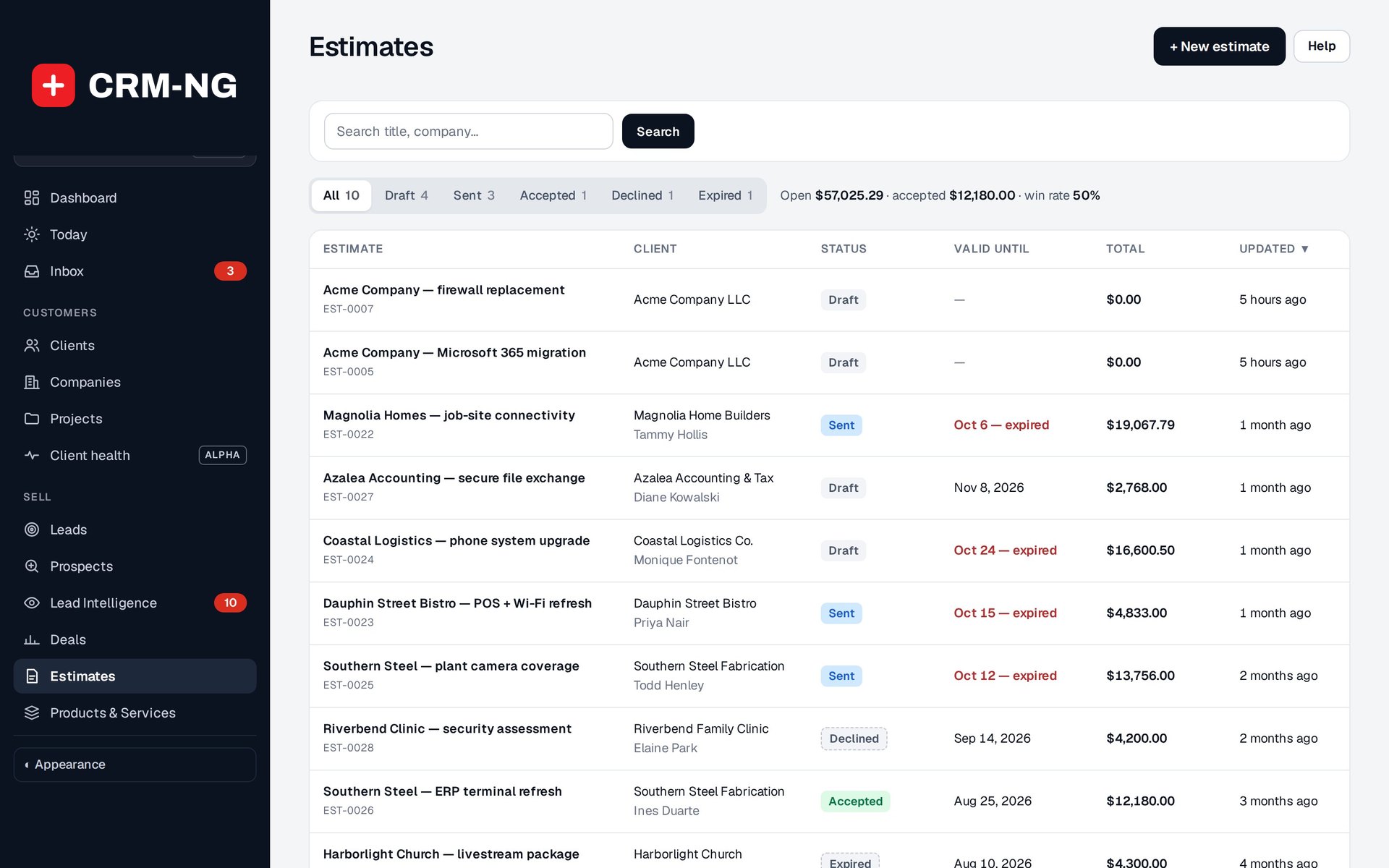
The estimates screen helps staff follow proposals from draft through acceptance, decline or expiry.
An estimate sets out what you propose to charge. It has its own status—Draft, Sent, Accepted, Declined or Expired—so staff can see whether it is still being prepared, awaiting a reply or ready for the next step.
Prepare the estimate
- Open Estimates and create a draft for the correct client or company.
- Add catalogue items or custom lines. Check the description, quantity, unit rate, tax and any adjustments.
- Set the dates and validity period, then check the currency, recipient and terms.
- Preview the document as the customer will see it. Make sure the scope and totals are clear.
- Send it using the available action, then check the mail result if delivery needs confirmation.
Keep the estimate linked to the relevant deal where appropriate. The deal shows the sales discussion; the estimate records the proposed scope and price.
Follow up and record acceptance
Use the estimate list and dashboard to find proposals awaiting a response or approaching expiry. Check whether acceptance was submitted by the customer or recorded by an authorized member of staff.
An expired estimate has passed its validity date. Contact the customer if you need to know whether they still want to proceed and whether the price or scope needs updating.
For accepted work, use the invoice-from-estimate action. Open the resulting draft invoice and check its customer, lines, dates and totals before issuing it. The conversion saves re-entry, but the invoice still needs its own review.
If the preview or email looks wrong
Reopen the saved estimate and compare its values with the preview. If the email did not arrive, check the sending result and mail configuration rather than relying only on a Sent status. Staging may intentionally block outgoing messages. See email troubleshooting.