Recording and reviewing time
Use a timer or manual entry, then check the customer, rate and billing status.
Needs: Core
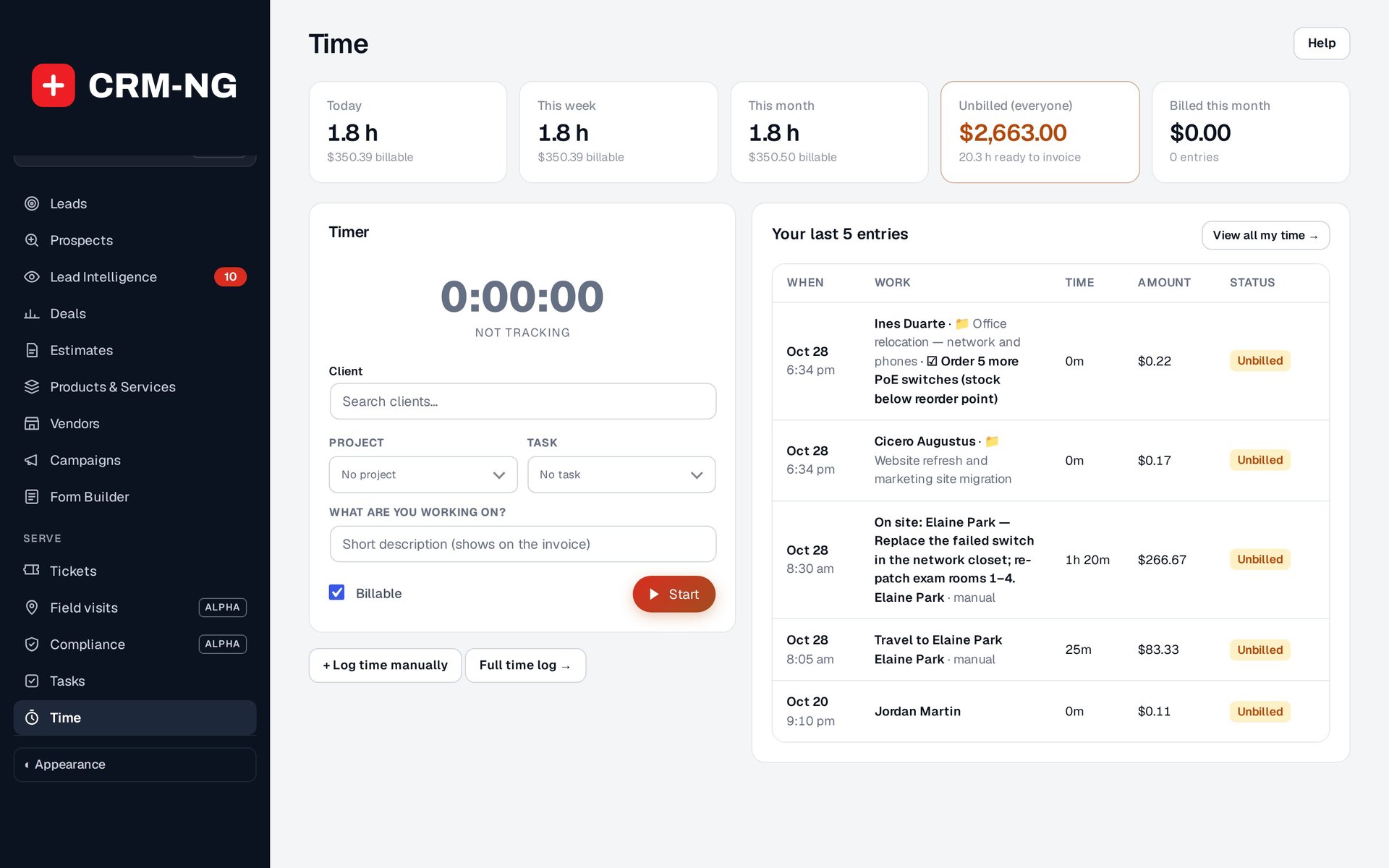
The Time screen provides a timer and manual entries linked to customers, projects or tasks.
Record time against the work it belongs to: a customer, project, task, ticket or another supported record. The description and link help another person understand what was done when reviewing the entry or preparing an invoice.
Start and stop a timer
- Open Time or the timer on the relevant work record.
- Check the customer and linked task, ticket or project.
- Enter a description and choose the billable setting where offered.
- Start the timer and stop it when you finish that work.
- Review the duration and correct any accidental or incomplete entry before billing review.
Check the running-timer indicator when switching tasks or finishing for the day. For a manual entry, use the date the work happened and the actual duration, even if you enter it later.
Understand the rate
CRM-NG checks for a client rate first, then a staff rate, then the company default. The applicable discount is applied to that rate. After-hours charges can also depend on the service plan, calendar and waiver settings.
If a charge differs from what you expected, inspect the selected rate and the customer's plan before changing the duration. Two customers can receive different charges for the same amount of time because their rates or service terms differ.
A billable entry, an entry approved against included hours and an entry already invoiced have different billing states. Use the included-hours procedure before invoicing work for a customer with an allowance.
Review and bill entries
Filter by person, customer, linked work, period and billing state. Read the description and open the related record for any duration you cannot explain. Select eligible unbilled entries through the billing action, then review the draft invoice before issuing it.
The invoice link helps staff identify work already billed. Project entries also appear under the project's Time & billing area. The project's budget is useful for comparison, but it does not approve each entry automatically.