Document templates and signatures
Prepare a template, assign a copy to a customer and follow it through signing.
Needs: Client Portal module
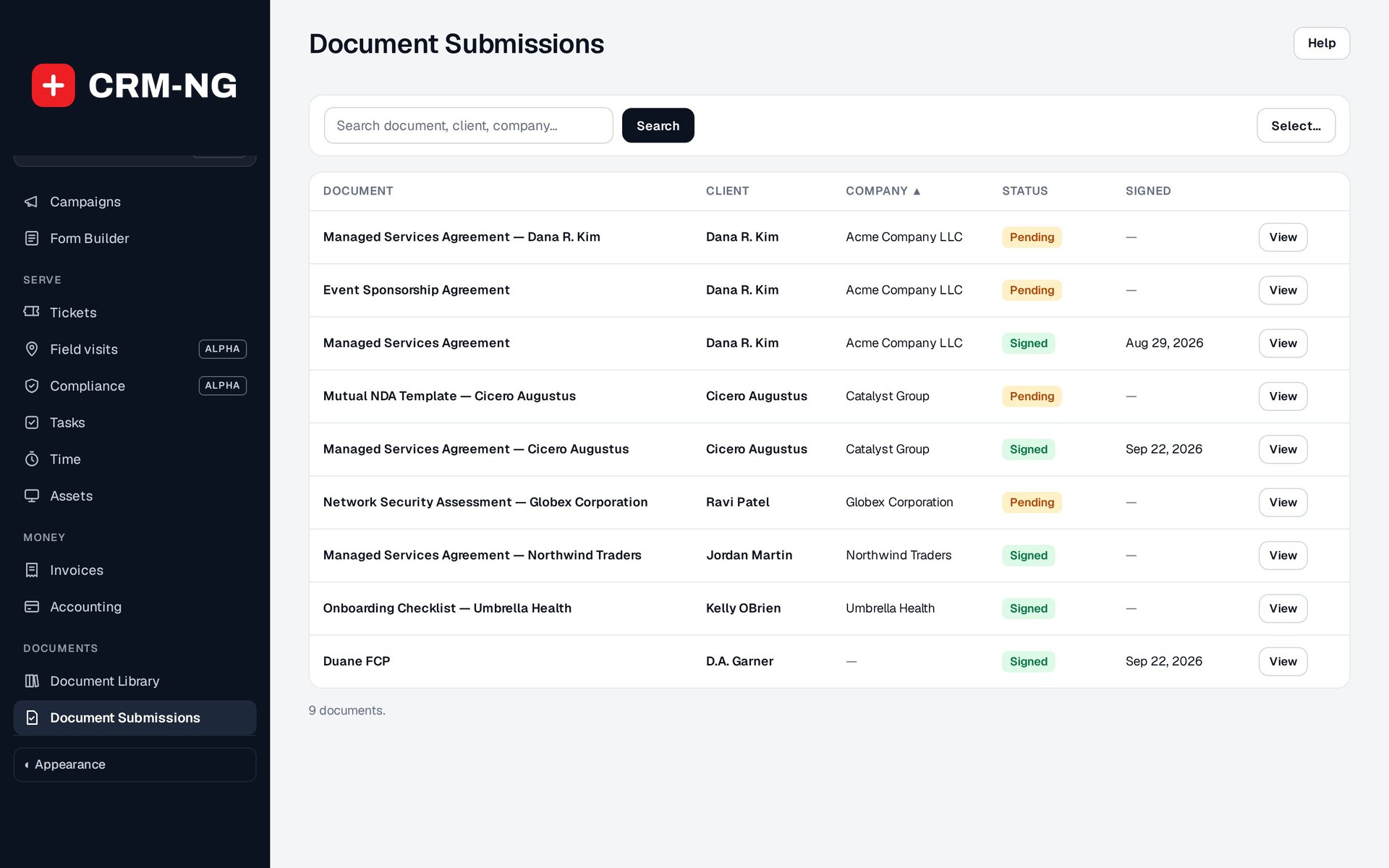
The Documents screen shows assigned copies and whether they have been signed or are still waiting for completion.
The Library stores reusable document templates. Documents shows copies assigned to customers and whether those copies have been completed or signed. Start in Library when preparing a document for reuse, and use Documents to follow an individual customer's progress.
Start from the starter library
The Library's Business document set has 132 ready-made documents to start from: client agreements, sales and billing, security and compliance, onboarding and operations forms, policies, staff and HR, software and website terms, 25 IT and security policies, 16 IT forms and records, and sets for law firms, accounting, healthcare, real estate, construction, home services, auto repair, manufacturing, nonprofits, retail and restaurants, and salons, spas and fitness. Add all adds every general and IT document; the industry sets are added one group or one document at a time. Each becomes a PDF with your business details and the signature and date boxes already placed. A document can be added only once.
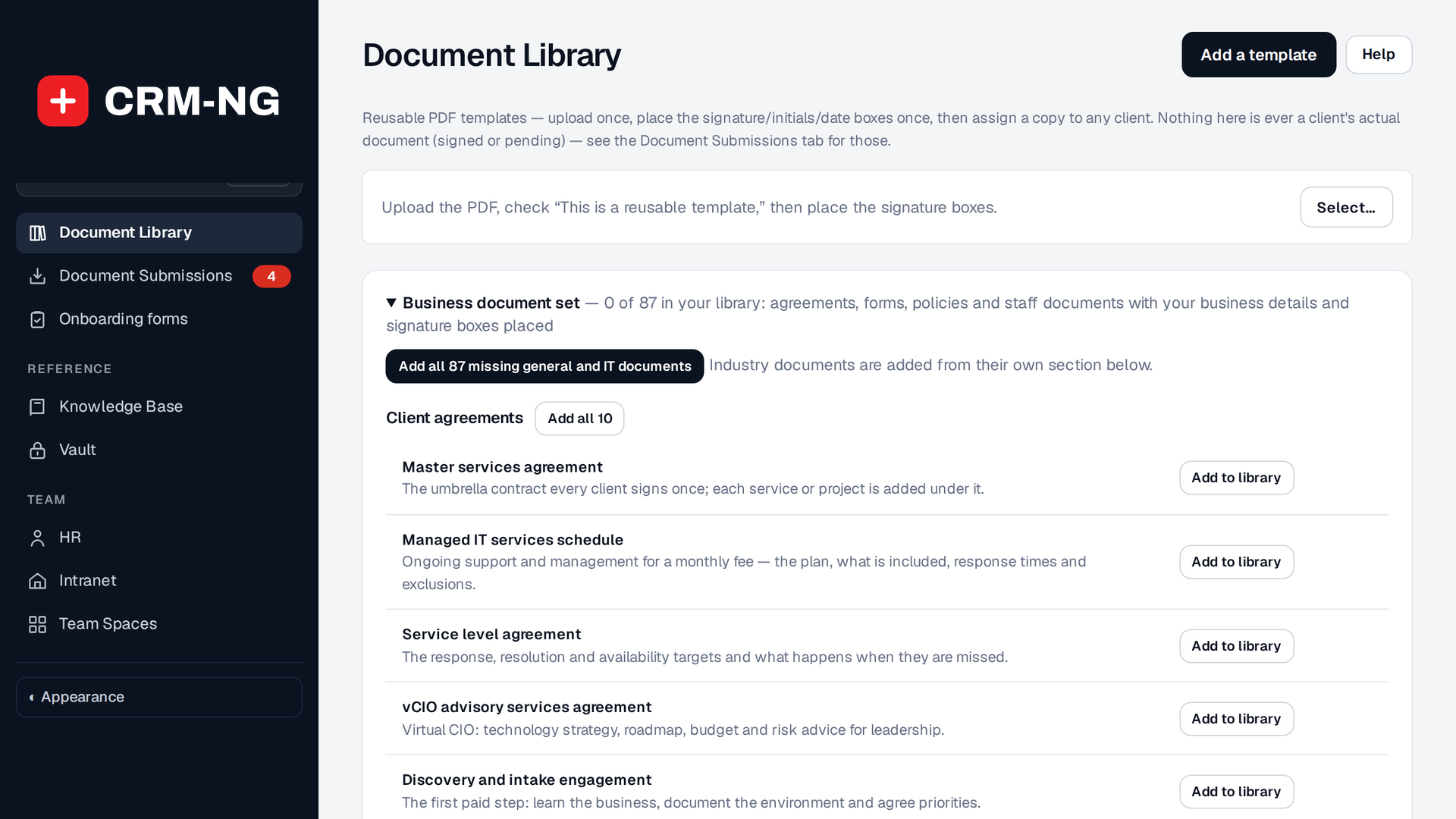
The Business document set: every starter document by group, each added on its own, a whole group, or all the general and IT documents at once.
Open any template to see it first: its purpose, View PDF and the page previews, with Send it to a client underneath. For a starter document, Edit wording changes its title, headings and text and makes a new PDF. Documents already sent keep the wording they were sent with. Every starter is a starting point to review with your own adviser.
Prepare your own template
Upload a supported PDF to Library and open the field-placement editor. Place signature, initials and date fields on the appropriate pages. Check every page of a multi-page document before saving, then give the template a name that staff can identify easily.
When changing wording or field positions, check how the change applies to future assignments. Do not assume that it also changes copies already assigned to customers.
Assign a copy and check the result
- Select the template and assign it to the intended client or supported company record.
- Open the assigned copy and check its recipient, document and status.
- The recipient opens the authorized portal link and reviews the document.
- They complete the required fields, using a typed or drawn signature where offered, and submit it.
- Check the completion status in Documents and open the completed file when you need to verify the result.
If the copy remains pending, check for incomplete fields, a signing session that was not submitted or the wrong assignment. Work from the assigned copy rather than the library template when investigating a particular customer.
Review the signing audit trail
Open the assigned document's detail view to review its status, original file, completed file and audit history. For a completed signature, the record includes the signing method, user, time, IP address and browser information. It also stores SHA-256 hashes of the document before and after signing, so the two file versions can be identified.
Use the assigned copy when investigating an individual customer's signature. Compare its recipient, completion time and signed file with the audit entries. The reusable library template is the starting document, rather than the customer's signing record.
Understand file access
Client documents use private storage with gated downloads. The web server must also deny direct access to that directory. Nginx needs its own server rules because it does not use Apache's .htaccess files. See file maintenance.
HR documents (contracts, IDs and government documents, certifications, tax forms) are stored the same private way: encrypted, with random file names, and opened only by people with HR access. See Employee documents and announcements.