Deals, estimates and invoices
This page follows money from the first conversation to a paid invoice. It needs Sales for deals and estimates, and Accounting for invoices and payments.
1. Set up your price list
Open Sales → Products & Services and add what you sell, each with a name, description, unit price and whether it is taxable. Estimates and invoices take their line items from this list, so prices are typed once and stay consistent.
2. Create a deal
- Open Deals and press Add deal.
- Name it, pick the client and company, set a value and an expected close date, and choose the pipeline stage.
- Attach the products or services you expect to sell.
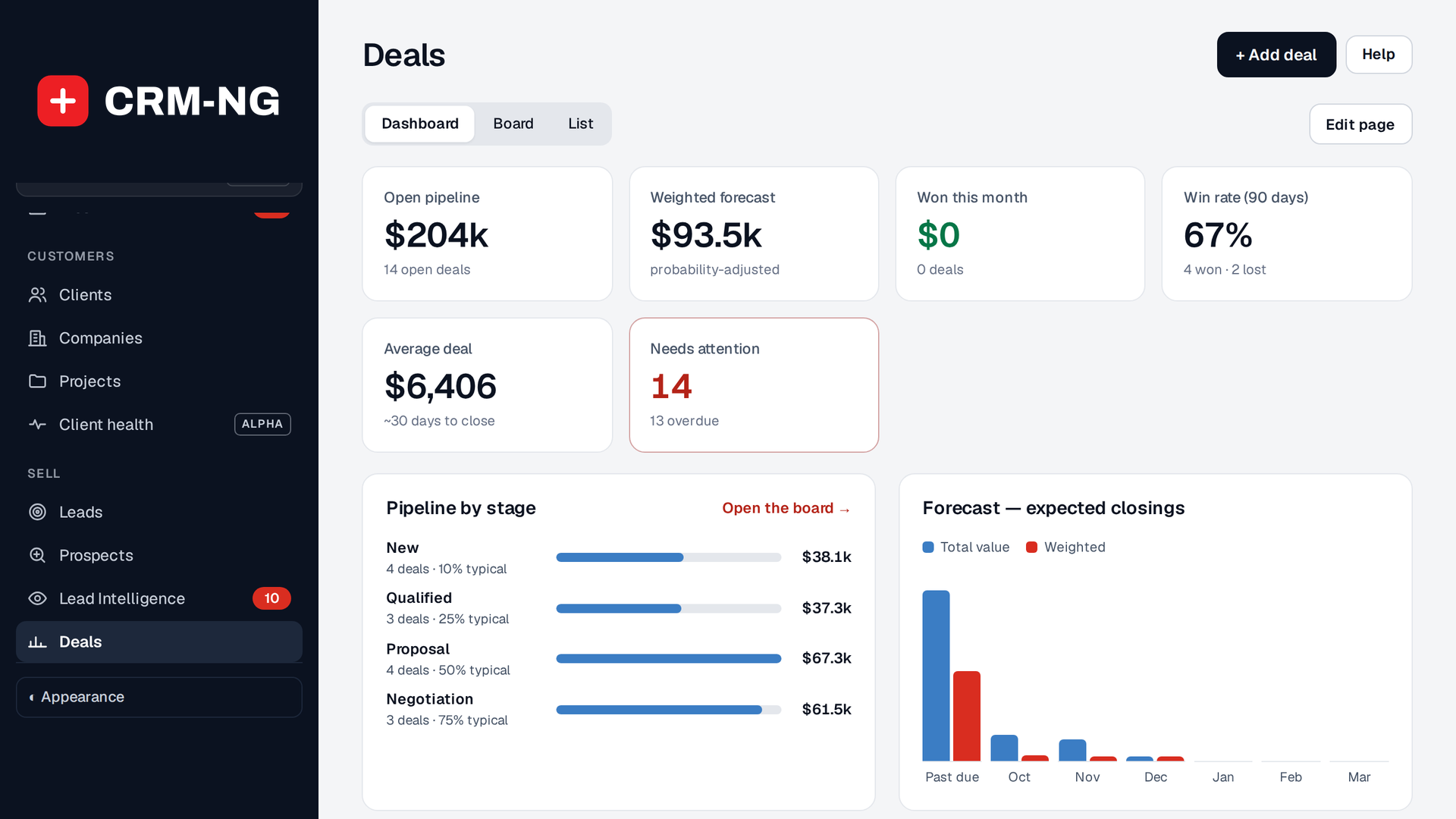
In CRM-NG Live the pipeline is a board: drag a card from one stage to the next as the deal moves. In the classic admin, change the stage on the deal itself. Deals that go quiet show up on the dashboard's attention list.
3. Send an estimate
- From the deal, open Estimates → New estimate.
- Add line items from the price list. Adjust quantities, add discounts, and check tax and terms, which start from your setup-wizard defaults.
- Press Send estimate. The client receives a PDF on your letterhead.
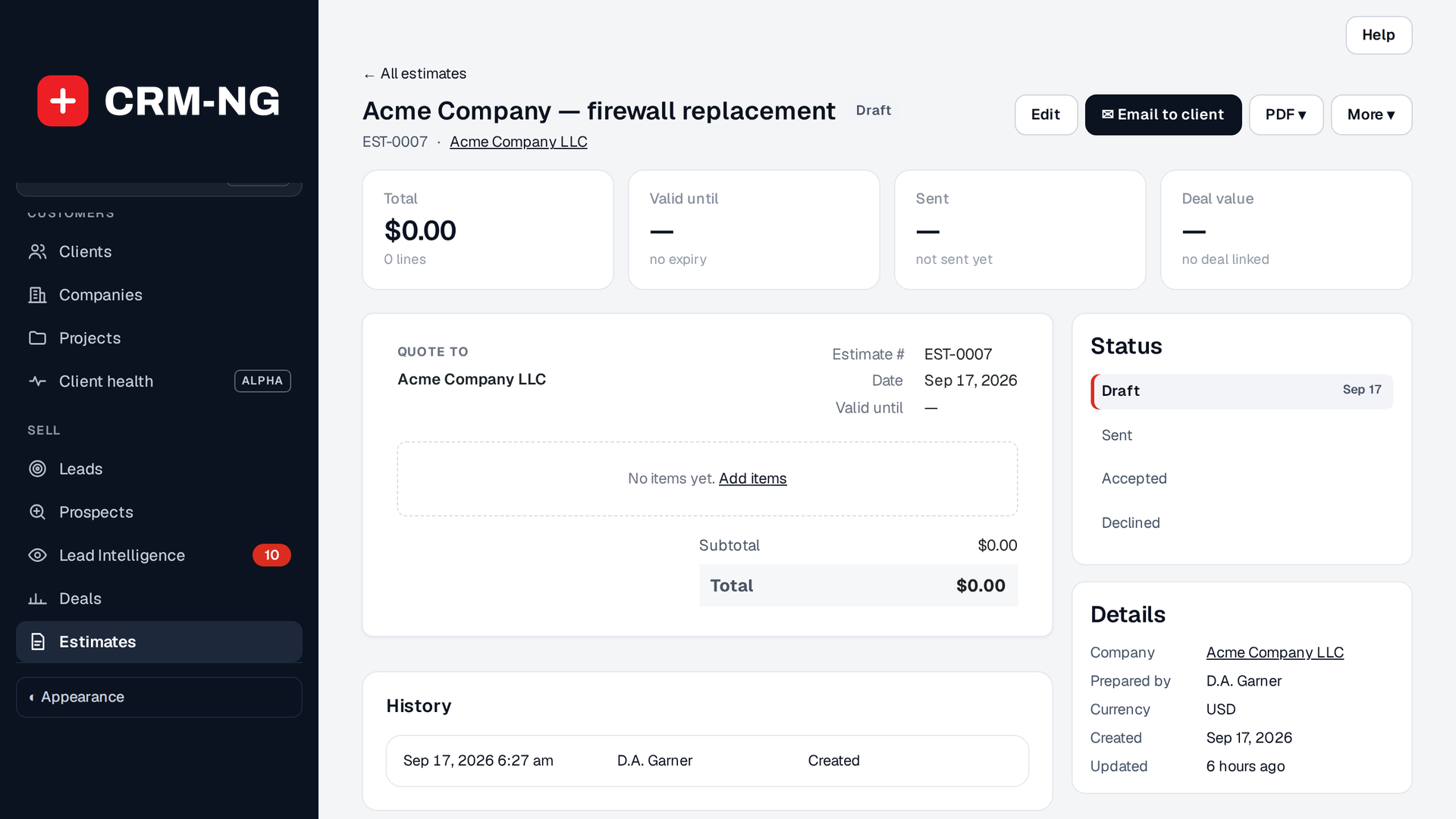
4. Convert it to an invoice
When the client accepts, press Convert to invoice →. The line items carry across, and the invoice links back to the estimate, the deal, the client and the company. Logged time can be added as line items at the rates that were fixed when the time was logged. See Tickets and time.
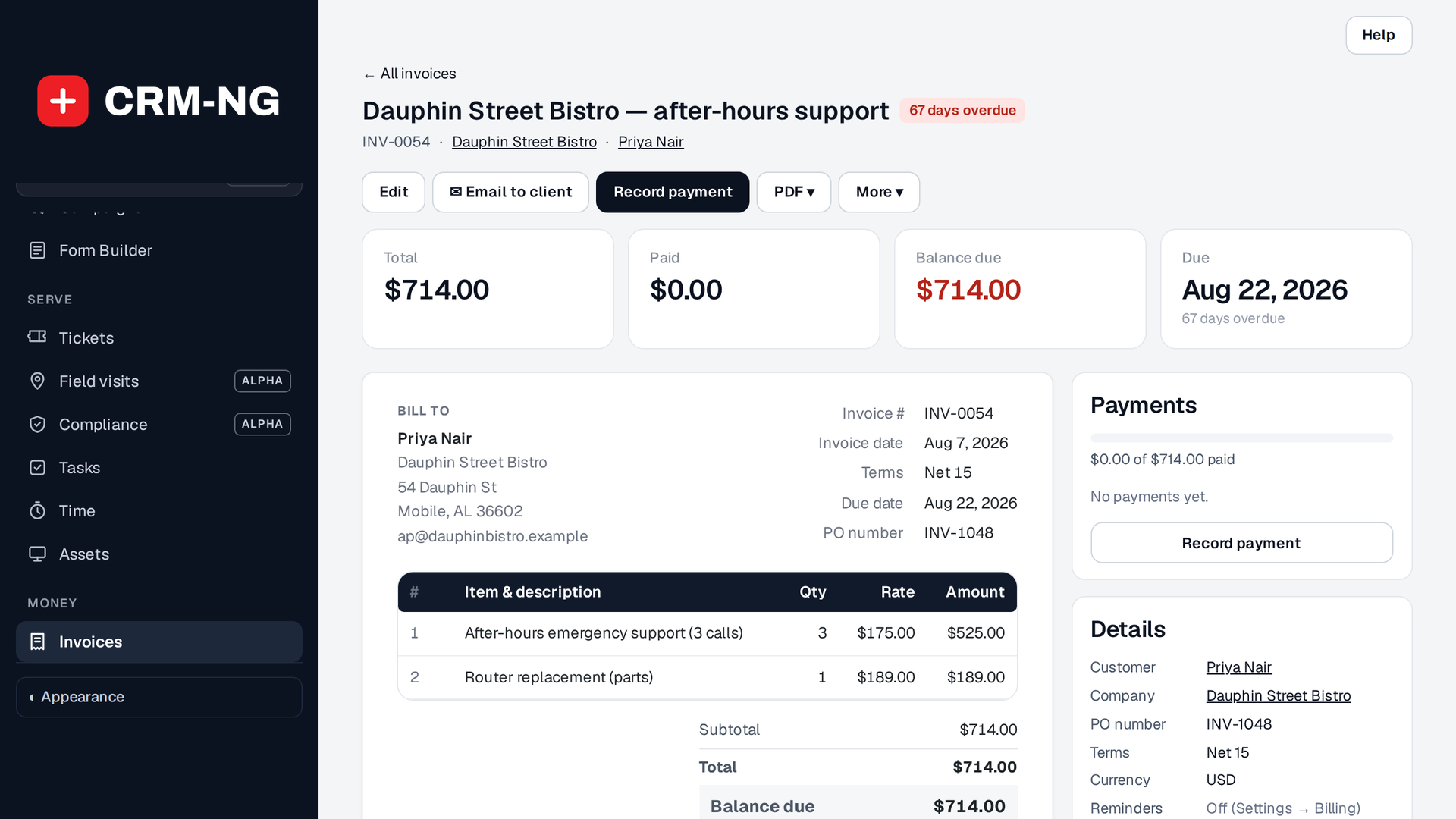
5. Get paid
- By card: connect Stripe under Settings → Billing. The emailed invoice carries a payment link, and the payment is recorded automatically when Stripe confirms it.
- By hand: record a bank transfer, cheque or cash payment on the invoice.
Either way, the books in Accounting update and the invoice is marked paid.
Test before you go live
Stripe has a test mode. Connect with your test keys first and pay one invoice with a Stripe test card, then switch to your live keys.
Next: tickets and time.